






























































































































Parallax Image Layers

Documentation
Webflow
Code
Setup: External Scripts
External Scripts in Webflow
Make sure to always put the External Scripts before the JavasScript step of the resource. In this video you learn where to put these in your Webflow project:
HTML
<script src="https://cdn.jsdelivr.net/npm/gsap@3.12.5/dist/gsap.min.js"></script>
<script src="https://cdn.jsdelivr.net/npm/gsap@3.12.5/dist/ScrollTrigger.min.js"></script>
Step 1: Copy structure to Webflow
Copy structure to Webflow
In the video below we described how you can copy + paste the structure of this resource to your Webflow project:
Copy to Webflow
Webflow structure is not required for this resource.
Step 1: Add HTML
HTML
<div class="parallax">
  <section class="parallax__header">
    <div class="parallax__visuals">
      <div class="parallax__black-line-overflow"></div>
      <div data-parallax-layers class="parallax__layers">
        <img src="https://cdn.prod.website-files.com/671752cd4027f01b1b8f1c7f/6717795be09b462b2e8ebf71_osmo-parallax-layer-3.webp" loading="eager" width="800" data-parallax-layer="1" alt="" class="parallax__layer-img">
        <img src="https://cdn.prod.website-files.com/671752cd4027f01b1b8f1c7f/6717795b4d5ac529e7d3a562_osmo-parallax-layer-2.webp" loading="eager" width="800" data-parallax-layer="2" alt="" class="parallax__layer-img">
        <div data-parallax-layer="3" class="parallax__layer-title">
          <h2 class="parallax__title">Parallax</h2>
        </div>
        <img src="https://cdn.prod.website-files.com/671752cd4027f01b1b8f1c7f/6717795bb5aceca85011ad83_osmo-parallax-layer-1.webp" loading="eager" width="800" data-parallax-layer="4" alt="" class="parallax__layer-img">
      </div>
      <div class="parallax__fade"></div>
    </div>
  </section>
  <section class="parallax__content">
    <svg xmlns="http://www.w3.org/2000/svg" width="100%" viewbox="0 0 160 160" fill="none" class="osmo-icon-svg"><path d="M94.8284 53.8578C92.3086 56.3776 88 54.593 88 51.0294V0H72V59.9999C72 66.6273 66.6274 71.9999 60 71.9999H0V87.9999H51.0294C54.5931 87.9999 56.3777 92.3085 53.8579 94.8283L18.3431 130.343L29.6569 141.657L65.1717 106.142C67.684 103.63 71.9745 105.396 72 108.939V160L88.0001 160L88 99.9999C88 93.3725 93.3726 87.9999 100 87.9999H160V71.9999H108.939C105.407 71.9745 103.64 67.7091 106.12 65.1938L106.142 65.1716L141.657 29.6568L130.343 18.3432L94.8284 53.8578Z" fill="currentColor"></path></svg>
  </section>
</div>
HTML structure is not required for this resource.
Step 2: Add CSS
CSS
.parallax {
  width: 100%;
  position: relative;
  overflow: hidden;
}

.parallax__content {
  padding: 10em 1em;
  justify-content: center;
  align-items: center;
  min-height: 100svh;
  display: flex;
  position: relative;
}

.parallax__layers {
  object-fit: cover;
  width: 100%;
  max-width: none;
  height: 100%;
  position: absolute;
  top: 0;
  left: 0;
  overflow: hidden;
}

.parallax__title {
  pointer-events: auto;
  text-align: center;
  text-transform: none;
  margin-top: 0;
  margin-bottom: .1em;
  margin-right: .075em;
  font-size: 10em;
  font-weight: 700;
  line-height: 1;
  position: relative;
}

.parallax__black-line-overflow {
  z-index: 20;
  background-color: #000;
  width: 100%;
  height: 2px;
  position: absolute;
  bottom: -1px;
  left: 0;
}

.parallax__layer-img {
  pointer-events: none;
  object-fit: cover;
  width: 100%;
  max-width: none;
  height: 117.5%;
  position: absolute;
  top: -17.5%;
  left: 0;
}

.parallax__fade {
  z-index: 30;
  object-fit: cover;
  background-image: linear-gradient(#0000, #000);
  width: 100%;
  max-width: none;
  height: 20%;
  position: absolute;
  bottom: 0;
  left: 0;
}

.parallax__header {
  z-index: 2;
  padding: 10em 1em;
  justify-content: center;
  align-items: center;
  min-height: 100svh;
  display: flex;
  position: relative;
}

.parallax__visuals {
  object-fit: cover;
  width: 100%;
  max-width: none;
  height: 120%;
  position: absolute;
  top: 0;
  left: 0;
}

.parallax__layer-title {
  justify-content: center;
  align-items: center;
  width: 100%;
  height: 100svh;
  display: flex;
  position: absolute;
  top: 0;
  left: 0;
}
Step 2: Add custom Javascript
Custom Javascript in Webflow
In this video, Ilja gives you some guidance about using JavaScript in Webflow:
Step 2: Add Javascript
Step 3: Add Javascript
Javascript
gsap.registerPlugin(ScrollTrigger);

function initParallaxLayers() {
  document.querySelectorAll('[data-parallax-layers]').forEach((triggerElement) => {
    let tl = gsap.timeline({
      scrollTrigger: {
        trigger: triggerElement,
        start: "0% 0%",
        end: "100% 0%",
        scrub: 0
      }
    });
    const layers = [
      { layer: "1", yPercent: 70 },
      { layer: "2", yPercent: 55 },
      { layer: "3", yPercent: 40 },
      { layer: "4", yPercent: 10 }
    ];
    layers.forEach((layerObj, idx) => {
      tl.to(
        triggerElement.querySelectorAll(`[data-parallax-layer="${layerObj.layer}"]`),
        {
          yPercent: layerObj.yPercent,
          ease: "none"
        },
        idx === 0 ? undefined : "<"
      );
    });
  });
}

// Initialize Parallax Layers
document.addEventListener('DOMContentLoaded', () => {
  initParallaxLayers();
});
Step 3: Add custom CSS
Step 2: Add custom CSS
Custom CSS in Webflow
Curious about where to put custom CSS in Webflow? Ilja explains it in the below video:
CSS
Implementation
Wrapper
Use [data-parallax-layers] to define the main container that holds all parallax elements. This element controls the scroll interaction and registers all layers within it.
Layer
Each [data-parallax-layer] defines an individual visual element that reacts to scroll position. Lower values move faster, while higher values move slower, simulating perspective depth.
Layer Speed
The scroll speed of each layer is determined by its numeric value: [data-parallax-layer="1"] moves the fastest, and higher numbers move more subtly.
You can fine-tune the speed per layer in the script if desired.
Image Layers
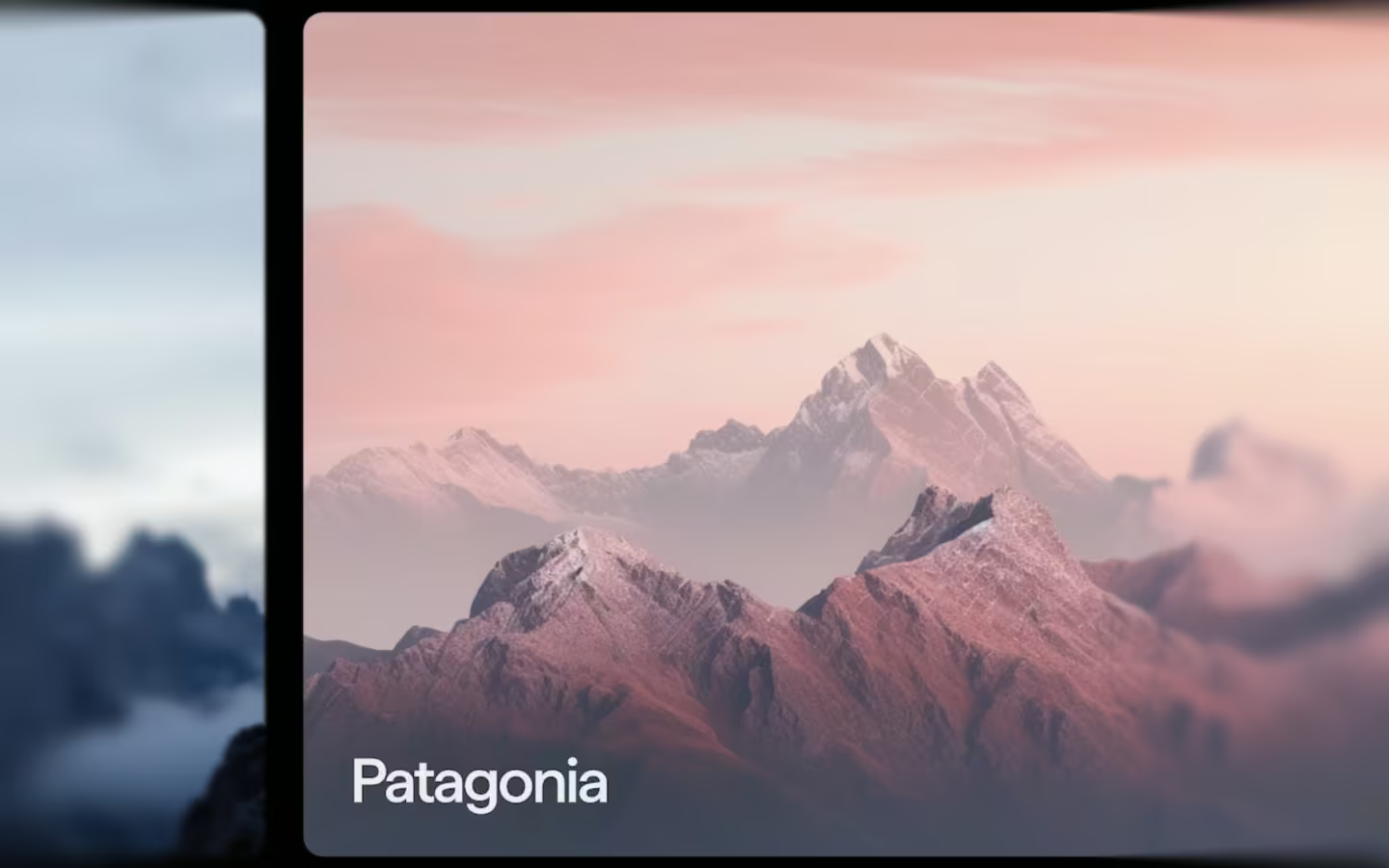
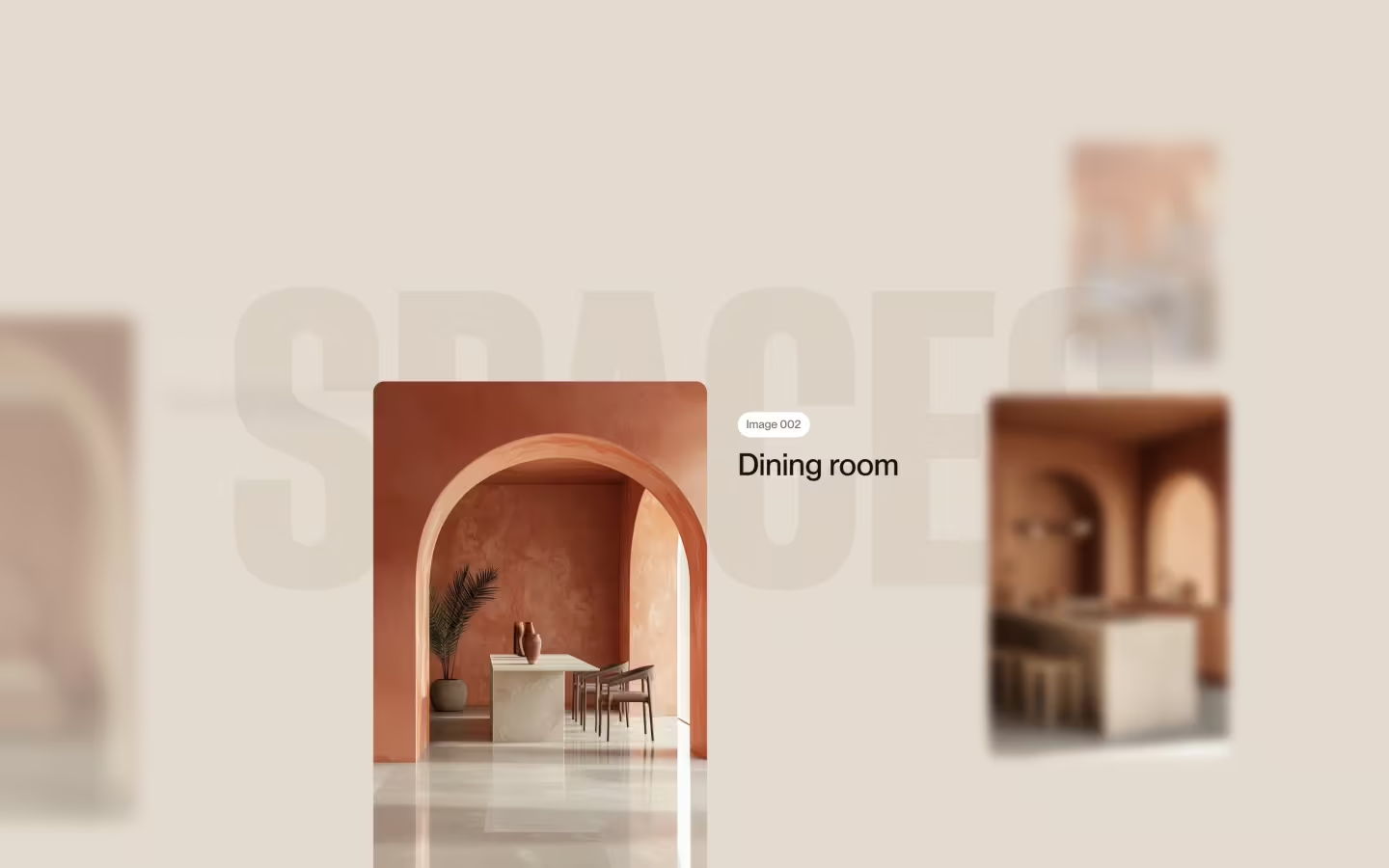
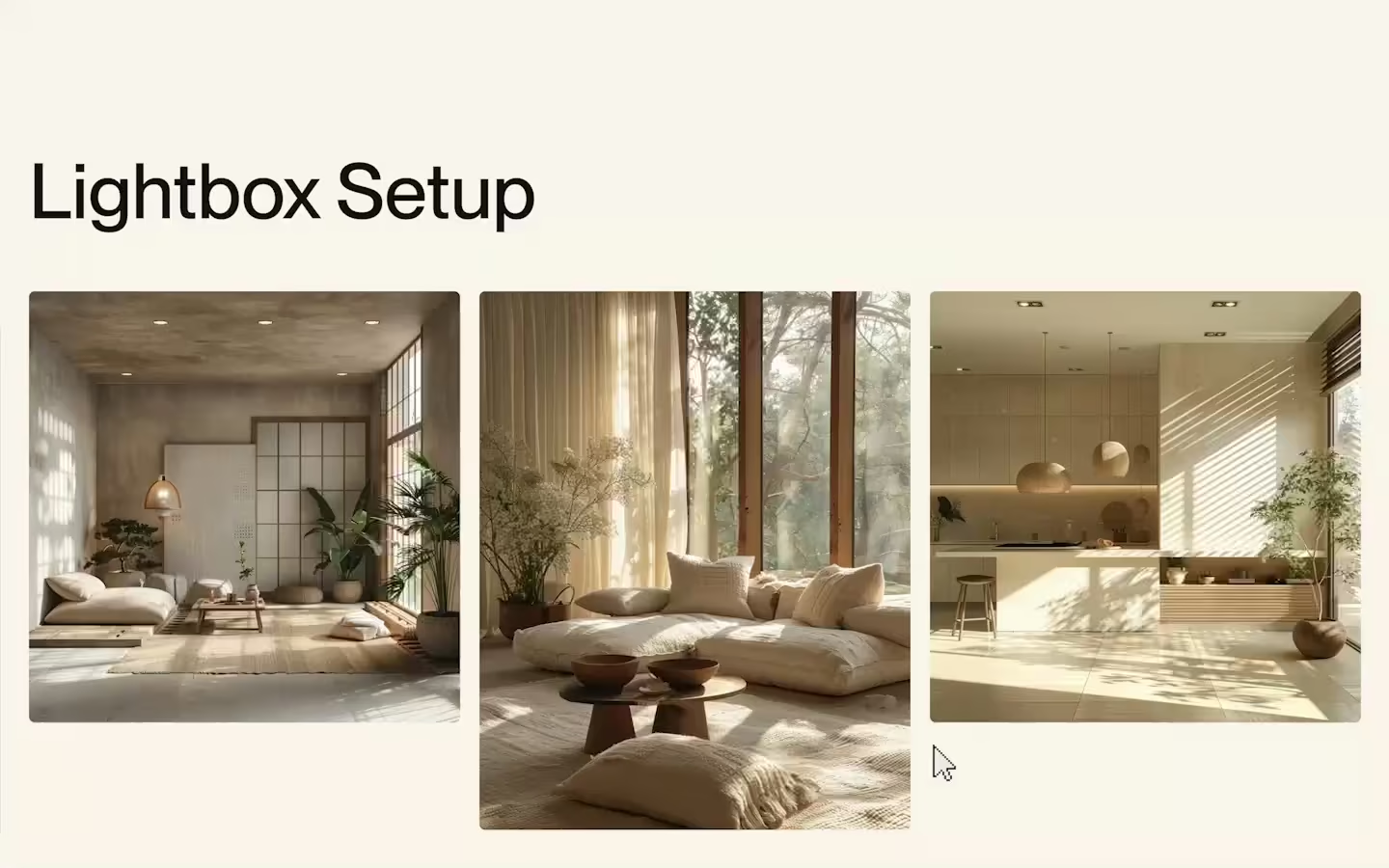
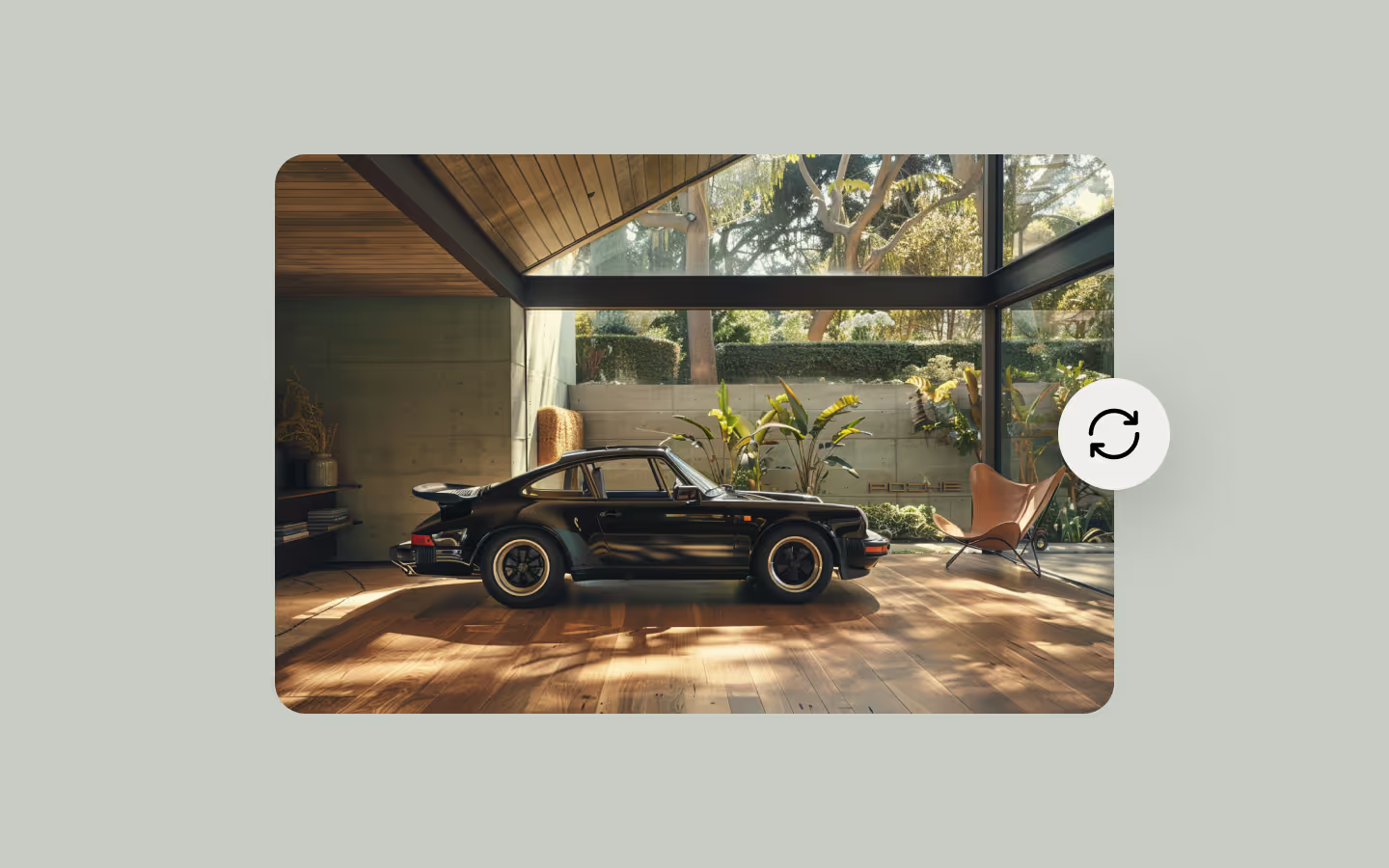
The effect works best with images that have visible depth, like landscapes, architecture, or wide shots. Cut your image into separate PNG layers (foreground, midground, background) to clearly define each depth plane.
Use a tool like Photoshop to export these as transparent PNGs for clean separation.
Tips
Use no more than four or five layers to keep performance optimal. Mix images and text layers for a more dynamic 3D look.
For an even smoother experience, pair it with the Lenis Setup for scroll smoothness.

Resource details
Last updated
November 13, 2025
Category
Free
Need help?
Join Slack
Locked
Original source
 Dennis Snellenberg
Creator Credits
We always strive to credit creators as accurately as possible. While similar concepts might appear online, we aim to provide proper and respectful attribution.