

















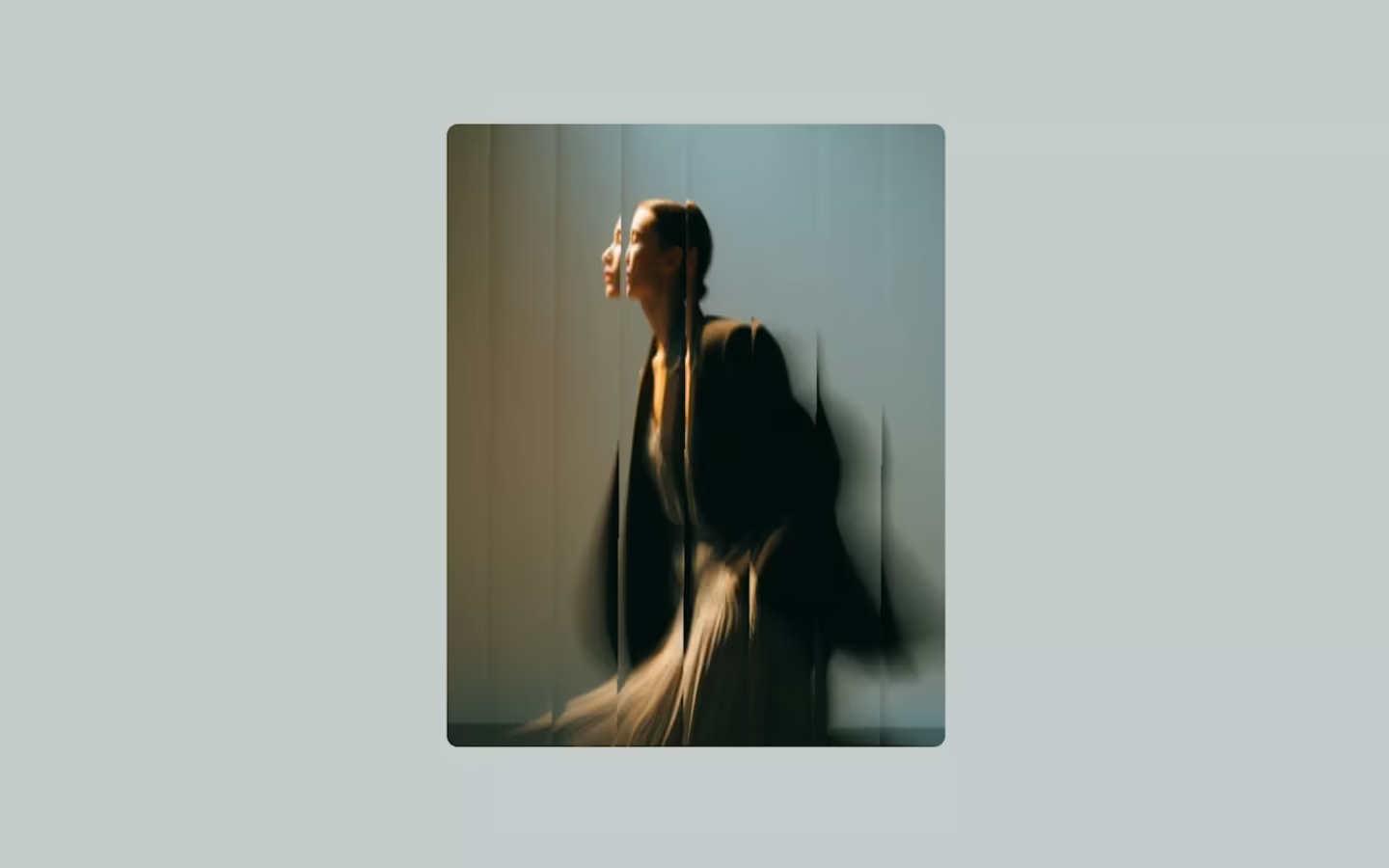















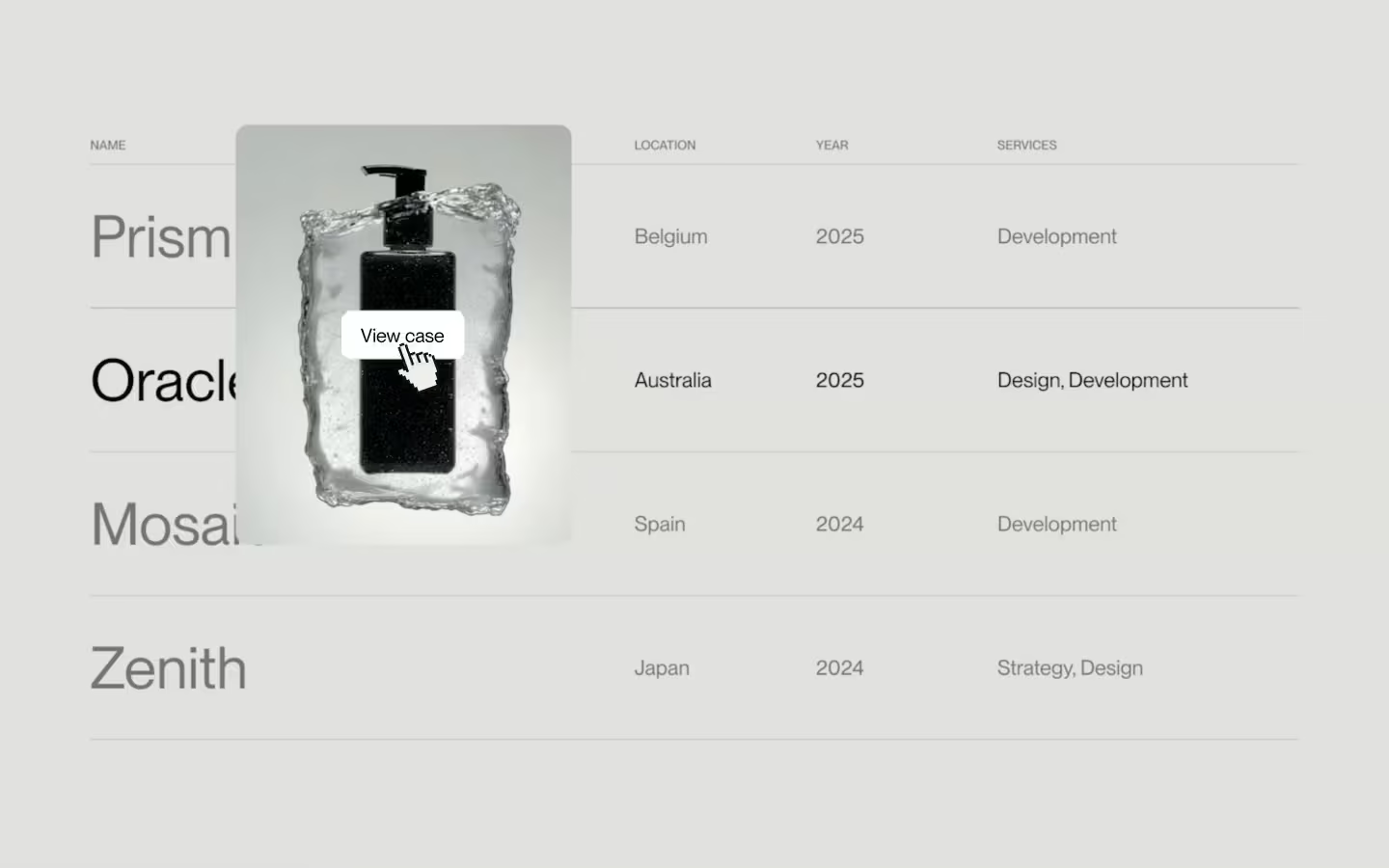
















































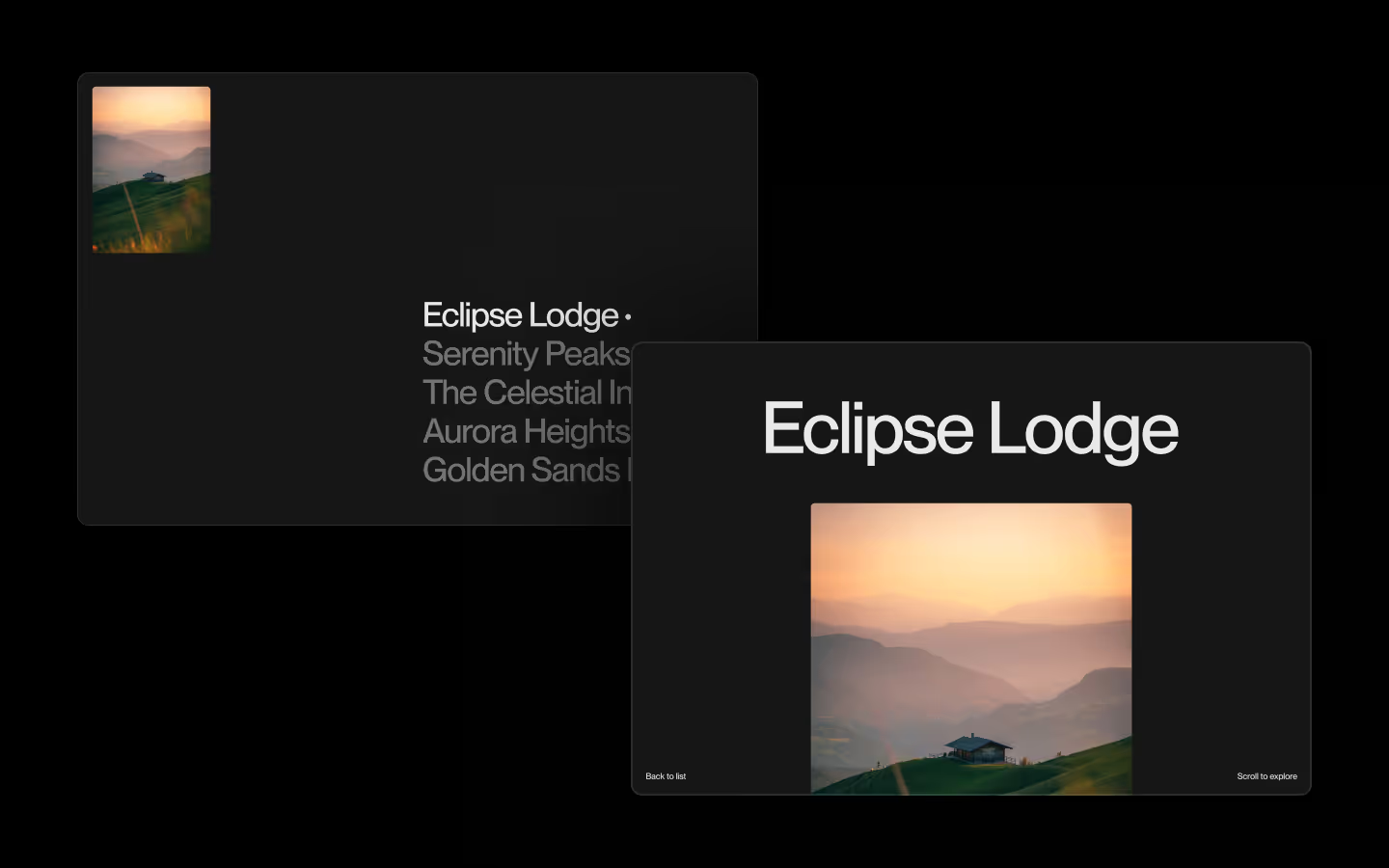












Big Typo Scroll Preview (Infinite)

Documentation
Webflow
Code
Setup: External Scripts
External Scripts in Webflow
Make sure to always put the External Scripts before the JavasScript step of the resource. In this video you learn where to put these in your Webflow project:
HTML
<!-- Lenis CSS -->
<link rel="stylesheet" href="https://cdn.jsdelivr.net/npm/lenis@1.2.3/dist/lenis.css">

<!-- Lenis JS -->
<script src="https://cdn.jsdelivr.net/npm/lenis@1.2.3/dist/lenis.min.js"></script>
Step 1: Copy structure to Webflow
Copy structure to Webflow
In the video below we described how you can copy + paste the structure of this resource to your Webflow project:
Copy to Webflow
Webflow structure is not required for this resource.
Step 1: Add HTML
HTML
<section data-typo-scroll-init="" data-typo-scroll-infinite="true" class="typo-scroll">
  <div class="typo-scroll__collection">
    <div data-typo-scroll-list="" class="typo-scroll__list">
      <div data-typo-scroll-item="" class="typo-scroll__item">
        <a href="#" class="typo-scroll__link">
          <h3 class="typo-scroll__h">OSMO SUPPLY</h3>
          <div class="typo-scroll__media">
            <img src="https://cdn.prod.website-files.com/693a7f8f14a0becb25db9e8f/693a879acaa2379a19c9dbc1_image%2026.avif" loading="lazy" alt="" class="typo-scroll__img">
            <p class="typo-scroll__p">[ OPEN CASE ]</p>
          </div>
        </a>
      </div>
      <div data-typo-scroll-item="" class="typo-scroll__item">
        <a href="#" class="typo-scroll__link">
          <h3 class="typo-scroll__h">Mara Lynt</h3>
          <div class="typo-scroll__media is--3-2">
            <img src="https://cdn.prod.website-files.com/693a7f8f14a0becb25db9e8f/693a879a40b0a52832601f51_image%2017.avif" loading="lazy" alt="" class="typo-scroll__img">
            <p class="typo-scroll__p">[ OPEN CASE ]</p>
          </div>
        </a>
      </div>
      <div data-typo-scroll-item="" class="typo-scroll__item">
        <a href="#" class="typo-scroll__link">
          <h3 class="typo-scroll__h">Kavirö</h3>
          <div class="typo-scroll__media is--2-3">
            <img src="https://cdn.prod.website-files.com/693a7f8f14a0becb25db9e8f/693a879a6755543b199a941a_image%2021.avif" loading="lazy" alt="" class="typo-scroll__img">
            <p class="typo-scroll__p">[ OPEN CASE ]</p>
          </div>
        </a>
      </div>
      <div data-typo-scroll-item="" class="typo-scroll__item">
        <a href="#" class="typo-scroll__link">
          <h3 class="typo-scroll__h">Solara Works</h3>
          <div class="typo-scroll__media is--1-1">
            <img src="https://cdn.prod.website-files.com/693a7f8f14a0becb25db9e8f/693a8799fb46f896d7c81f9b_image%2030.avif" loading="lazy" alt="" class="typo-scroll__img">
            <p class="typo-scroll__p">[ OPEN CASE ]</p>
          </div>
        </a>
      </div>
      <!-- More items -->
    </div>
  </div>
</section>
HTML structure is not required for this resource.
Step 2: Add CSS
CSS
.typo-scroll {
  color: #2b2b2b;
  background-color: #c9ccc5;
  width: 100vw;
  position: relative;
  overflow: clip;
}

.typo-scroll__collection {
  flex-flow: column;
  align-items: center;
  width: 100%;
  height: 100%;
  display: flex;
}

.typo-scroll__list {
  flex-flow: column;
  width: 100%;
  display: flex;
}

.typo-scroll__item {
  width: 100%;
}

.typo-scroll__link {
  color: inherit;
  justify-content: center;
  width: 100%;
  text-decoration: none;
  display: flex;
}

.typo-scroll__h {
  text-align: center;
  letter-spacing: -.05em;
  text-transform: uppercase;
  white-space: nowrap;
  margin-top: 0;
  margin-bottom: 0;
  font-size: 7.5vw;
  line-height: .9;
}

[data-typo-scroll-item="active"] .typo-scroll__h{
  z-index: 2;
  color: #6B6B6B;
  mix-blend-mode: difference;
}

.typo-scroll__media {
  aspect-ratio: 3 / 4;
  pointer-events: none;
  width: 17.5vw;
  position: fixed;
  top: 50%;
  left: 50%;
  overflow: hidden;
  transform: translate(-50%, -50%);
  --po: 1.5em; /* Path offset */
  transition: clip-path 1.2s cubic-bezier(0.16, 1, 0.3, 1);
  clip-path: polygon(calc(0% + var(--po)) calc(0% + var(--po)), calc(100% - var(--po)) calc(0% + var(--po)), calc(100% - var(--po)) calc(100% - var(--po)), calc(0% + var(--po)) calc(100% - var(--po)));
  opacity: 0;
}

[data-typo-scroll-item="active"] .typo-scroll__media {
  clip-path: polygon(0% 0%, 100% 0%, 100% 100%, 0% 100%);
  opacity: 1;
}

@media (hover: none) and (pointer: coarse) {
  [data-typo-scroll-item="active"] .typo-scroll__media {
    pointer-events: all;
  }
}

.typo-scroll__media.is--3-2 {
  aspect-ratio: 3 / 2;
  width: 25vw;
}

.typo-scroll__media.is--2-3 {
  aspect-ratio: 2 / 3;
  width: 16.5vw;
}

.typo-scroll__media.is--1-1 {
  aspect-ratio: 1;
  width: 20vw;
}

.typo-scroll__img {
  object-fit: cover;
  width: 100%;
  height: 100%;
  max-height: 100%;
}

.typo-scroll__img.is--bw {
  filter: grayscale(1);
}

.typo-scroll__p {
  -webkit-backdrop-filter: blur(1em);
  backdrop-filter: blur(1em);
  color: #f4f4f4;
  text-align: center;
  white-space: nowrap;
  background-color: #201d1d33;
  margin-bottom: 0;
  padding: .25em;
  font-family: monospace;
  font-size: .75em;
  position: absolute;
  bottom: 2em;
  left: 50%;
  transform: translate(-50%);
}

@media screen and (max-width: 991px) {
  .typo-scroll__h {
    font-size: 11vw;
  }

  .typo-scroll__media {
    width: 52.5vw;
  }

  .typo-scroll__media.is--3-2 {
    width: 75vw;
  }

  .typo-scroll__media.is--2-3 {
    width: 49.5vw;
  }

  .typo-scroll__media.is--1-1 {
    width: 60vw;
  }
}
Step 2: Add custom Javascript
Custom Javascript in Webflow
In this video, Ilja gives you some guidance about using JavaScript in Webflow:
Step 2: Add Javascript
Step 3: Add Javascript
Javascript
/* Lenis */
var lenis = null;

function initTypoScrollPreview() {
  var containers = document.querySelectorAll('[data-typo-scroll-init]');
  if (!containers.length) return;

  var hasInfinite = false;

  containers.forEach(function (container) {
    var isInfinite =
      container.getAttribute('data-typo-scroll-infinite') === 'true';

    if (isInfinite) {
      hasInfinite = true;

      var list = container.querySelector('[data-typo-scroll-list]');
      if (list) {
        var clone = list.cloneNode(true);
        clone.style.overflow = 'hidden';
        clone.style.height = '100dvh';
        container.appendChild(clone);
      }
    }
  });

  lenis = new Lenis({
    autoRaf: true,
    infinite: hasInfinite,
    syncTouch: hasInfinite
  });

  if ('fonts' in document && document.fonts.ready) {
    document.fonts.ready.then(function () {
      if (lenis) {
        lenis.resize();
      }
    });
  }

  var isTouchDevice =
    ('ontouchstart' in window) ||
    (navigator.maxTouchPoints > 0) ||
    (navigator.msMaxTouchPoints > 0);

  if (isTouchDevice) {
    function updateActiveItems() {
      var viewportCenterY = window.innerHeight / 2;

      containers.forEach(function (container) {
        var items = container.querySelectorAll('[data-typo-scroll-item]');
        if (!items.length) return;

        var containerRect = container.getBoundingClientRect();

        if (viewportCenterY < containerRect.top || viewportCenterY > containerRect.bottom) {
          items.forEach(function (item) {
            item.setAttribute('data-typo-scroll-item', '');
          });
          return;
        }

        var closestItem = null;
        var closestDistance = Infinity;

        items.forEach(function (item) {
          var rect = item.getBoundingClientRect();
          if (rect.bottom < 0 || rect.top > window.innerHeight) return;

          var itemCenterY = rect.top + rect.height / 2;
          var distance = Math.abs(viewportCenterY - itemCenterY);

          if (distance < closestDistance) {
            closestDistance = distance;
            closestItem = item;
          }
        });

        if (!closestItem) {
          items.forEach(function (item) {
            item.setAttribute('data-typo-scroll-item', '');
          });
          return;
        }

        items.forEach(function (item) {
          item.setAttribute(
            'data-typo-scroll-item',
            item === closestItem ? 'active' : ''
          );
        });
      });

      requestAnimationFrame(updateActiveItems);
    }

    requestAnimationFrame(updateActiveItems);
  } else {
    containers.forEach(function (container) {
      var items = container.querySelectorAll('[data-typo-scroll-item]');
      if (!items.length) return;

      function setActive(target) {
        items.forEach(function (item) {
          item.setAttribute(
            'data-typo-scroll-item',
            item === target ? 'active' : ''
          );
        });
      }

      function clearActive() {
        items.forEach(function (item) {
          item.setAttribute('data-typo-scroll-item', '');
        });
      }

      items.forEach(function (item) {
        item.addEventListener('mouseenter', function () {
          setActive(item);
        });
      });

      container.addEventListener('mouseleave', function () {
        clearActive();
      });
    });
  }
}

// Initialize Big Typo Scroll Preview (Infinite)
document.addEventListener('DOMContentLoaded', function () {
  initTypoScrollPreview();
});
Step 3: Add custom CSS
Step 2: Add custom CSS
Custom CSS in Webflow
Curious about where to put custom CSS in Webflow? Ilja explains it in the below video:
CSS
:is(.wf-design-mode, .wf-editor) [data-typo-scroll-item]:hover .typo-scroll__h,
[data-typo-scroll-item="active"] .typo-scroll__h{
  z-index: 2;
  color: #6B6B6B;
  mix-blend-mode: difference;
}

.typo-scroll__media {
  --po: 1.5em; /* Path offset */
  transition: clip-path 1.2s cubic-bezier(0.16, 1, 0.3, 1);
  clip-path: polygon(calc(0% + var(--po)) calc(0% + var(--po)), calc(100% - var(--po)) calc(0% + var(--po)), calc(100% - var(--po)) calc(100% - var(--po)), calc(0% + var(--po)) calc(100% - var(--po)));
  opacity: 0;
}

:is(.wf-design-mode, .wf-editor) [data-typo-scroll-item]:hover .typo-scroll__media,
[data-typo-scroll-item="active"] .typo-scroll__media {
  clip-path: polygon(0% 0%, 100% 0%, 100% 100%, 0% 100%);
  opacity: 1;
}

@media (hover: none) and (pointer: coarse) {
  [data-typo-scroll-item="active"] .typo-scroll__media {
    pointer-events: all;
  }
}
Implementation
Container
Use [data-typo-scroll-init] to mark the element that manages scroll detection, active state logic, and optional infinite duplication of its list.
<div data-typo-scroll-init data-typo-scroll-infinite="true/false">
  <div data-typo-scroll-list>
    <div data-typo-scroll-item>Item 1</div>
    <div data-typo-scroll-item>Item 2</div>
  </div>
</div>
Infinite
Use [data-typo-scroll-infinite="true"] to enable Lenis infinite scrolling and list duplication inside the container.
List
Use [data-typo-scroll-list] to wrap all scrollable items, allowing the script to duplicate this group when infinite mode is active.
Item
Use [data-typo-scroll-item] to register each element as a selectable entry, giving the script a target for setting its active state.
Active
Use [data-typo-scroll-item="active"] to indicate which item currently aligns with the viewport center on touch devices or sits under the cursor on non touch devices.
Touch vs Non Touch Devices
The script behaves differently depending on the device. On touch devices it highlights the item closest to the center of the screen and clears all highlights when the center moves outside the container, while on non touch devices it highlights the item that sits at the screen center instead of relying on hover and removes all highlights when the cursor leaves the container.
Resource details
Last updated
December 16, 2025
Category
Scroll Animations
Need help?
Join Slack
Original source
 Dennis Snellenberg
Creator Credits
We always strive to credit creators as accurately as possible. While similar concepts might appear online, we aim to provide proper and respectful attribution.