








































































































Rotating Text
Documentation
Webflow
Code
Setup: External Scripts
External Scripts in Webflow
Make sure to always put the External Scripts before the JavasScript step of the resource. In this video you learn where to put these in your Webflow project:
HTML
<script src="https://cdn.jsdelivr.net/npm/gsap@3.14.1/dist/gsap.min.js"></script>
<script src="https://cdn.jsdelivr.net/npm/gsap@3.14.1/dist/SplitText.min.js"></script>
Step 1: Copy structure to Webflow
Copy structure to Webflow
In the video below we described how you can copy + paste the structure of this resource to your Webflow project:
Copy to Webflow
Webflow structure is not required for this resource.
Step 1: Add HTML
HTML
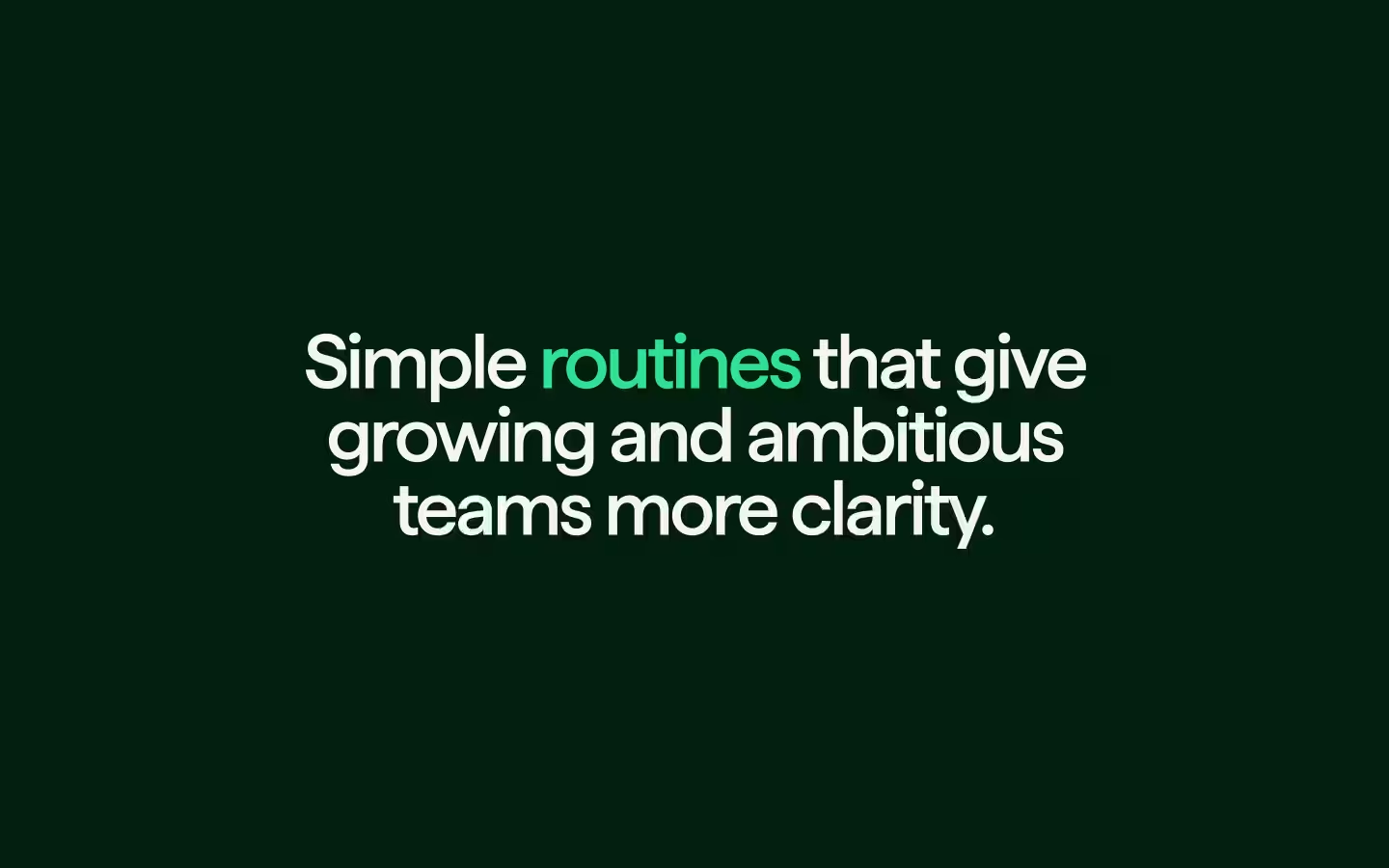
<h1 data-rotating-title class="rotating-text__heading">Simple
  <span data-rotating-words="routines, tools, systems, help" class="rotating-text__highlight">routines</span>
  that give growing and ambitious teams more clarity.
</h1>
HTML structure is not required for this resource.
Step 2: Add CSS
CSS
.rotating-text__heading {
  text-align: center;
  letter-spacing: -.02em;
  margin: 0;
  font-family: Haffer, Arial, sans-serif;
  font-size: clamp(2.5em, 7.5vw, 4.5em);
  font-weight: 500;
  line-height: 1;
}

.rotating-text__highlight {
  color: #33de96;
}

[data-rotating-words] {
  display: inline-block;
  position: relative;
}

.rotating-text__inner {
  display: inline-block;
}

.rotating-text__word {
  display: block;
  white-space: nowrap;
  position: absolute;
  top: 0;
  left: 0;
}

.rotating-line{
  padding-bottom: 0.1em;
  margin-bottom: -0.1em;
  white-space: nowrap;
}

.rotating-line-mask{
  overflow-x: visible !important;
  overflow-y: clip !important;
}
Step 2: Add custom Javascript
Custom Javascript in Webflow
In this video, Ilja gives you some guidance about using JavaScript in Webflow:
Step 2: Add Javascript
Step 3: Add Javascript
Javascript
function initRotatingText() {
  document.querySelectorAll('[data-rotating-title]').forEach((heading) => {

    const stepDuration = parseFloat(heading.getAttribute('data-step-duration') || '1.75');

    SplitText.create(heading, {
      type: 'lines',
      mask: 'lines',
      autoSplit: true,
      linesClass: 'rotating-line',
      onSplit(instance) {
        const rotatingSpan = heading.querySelector('[data-rotating-words]');
        if (!rotatingSpan) return;

        const rawWords = rotatingSpan.getAttribute('data-rotating-words') || '';
        const words = rawWords
          .split(',')
          .map((w) => w.trim())
          .filter(Boolean);

        if (!words.length) return;

        // Build inner wrapper with stacked words
        const wrapper = document.createElement('span');
        wrapper.className = 'rotating-text__inner';

        const wordEls = words.map((word) => {
          const el = document.createElement('span');
          el.className = 'rotating-text__word';
          el.textContent = word;
          wrapper.appendChild(el);
          return el;
        });

        // Replace the original content of the highlight span
        rotatingSpan.textContent = '';
        rotatingSpan.appendChild(wrapper);

        requestAnimationFrame(() => {

          // Define duration of your in + out movement
          const inDuration = 0.75;
          const outDuration = 0.6;

          // Initial state: everyone hidden below
          gsap.set(wordEls, { yPercent: 150, autoAlpha: 0 });

          // Show first word immediately
          let activeIndex = 0;
          const firstWord = wordEls[activeIndex];
          gsap.set(firstWord, { yPercent: 0, autoAlpha: 1 });

          // Set initial width to first word
          const firstWidth = firstWord.getBoundingClientRect().width;
          wrapper.style.width = firstWidth + 'px';

          function showNext() {
            const nextIndex = (activeIndex + 1) % wordEls.length;
            const prev = wordEls[activeIndex];
            const current = wordEls[nextIndex];

            const targetWidth = current.getBoundingClientRect().width;

            // Animate wrapper width to match new word
            gsap.to(wrapper, {
              width: targetWidth,
              duration: inDuration,
              ease: 'power4.inOut'
            });

            // Move old word out
            if (prev && prev !== current) {
              gsap.to(prev, {
                yPercent: -150,
                autoAlpha: 0,
                duration: outDuration,
                ease: 'power4.inOut'
              });
            }

            // Reveal new word
            gsap.fromTo(
              current,
              { yPercent: 150, autoAlpha: 0 },
              {
                yPercent: 0,
                autoAlpha: 1,
                duration: inDuration,
                ease: 'power4.inOut'
              }
            );

            activeIndex = nextIndex;

            gsap.delayedCall(stepDuration, showNext);
          }

          // First word is already visible, start rotating after a full step
          if (wordEls.length > 1) {
            gsap.delayedCall(stepDuration, showNext);
          }
        });
      }
    });
  });
}

// Initialize Rotating Text
document.addEventListener("DOMContentLoaded", function () {
  initRotatingText();
});
Step 3: Add custom CSS
Step 2: Add custom CSS
Custom CSS in Webflow
Curious about where to put custom CSS in Webflow? Ilja explains it in the below video:
CSS
[data-rotating-words] {
  display: inline-block;
  position: relative;
}

.rotating-text__inner {
  display: inline-block;
}

.rotating-text__word {
  display: block;
  white-space: nowrap;
  position: absolute;
  top: 0;
  left: 0;
}

.rotating-line{
  padding-bottom: 0.1em;
  margin-bottom: -0.1em;
  white-space: nowrap;
}

.rotating-line-mask{
  overflow-x: visible !important;
  overflow-y: clip !important;
}
Implementation
Heading Target
Use [data-rotating-title] on the heading that should animate so the script can register the element, split it into lines, and drive the rotating text effect.
Rotating Words
Use [data-rotating-words] on a span inside your heading to define the words that the script should cycle through. The value of this attribute is a comma-separated list of all words you want to animate, in the exact order they should appear:
<h1 data-rotating-title>
  Hello
  <span data-rotating-words="word 1, word 2, word 3">word 1</span>
  World
</h1>
The script reads this list and generates the full word stack dynamically, so you do not need to place all words in your HTML, only inside the attribute value!
Longest Word Requirement
Ensure the word you place visibly in the DOM on load (the one inside the span) is the longest word from your list, allowing GSAP's SplitText to calculate the correct line width before the dynamic rotating words are injected.
Step Duration
Use [data-step-duration] (default 1.75) on the same element as [data-rotating-title] to control the delay in seconds between each word change in the rotation loop.
<h1 data-rotating-title data-step-duration="2.5">
  Hello
  <span data-rotating-words="word 1, word 2, word 3">word 1</span>
  World
</h1>Resource details
Last updated
January 22, 2026
Category
Text Animations
Need help?
Join Slack
Original source
 Ilja van Eck
Creator Credits
We always strive to credit creators as accurately as possible. While similar concepts might appear online, we aim to provide proper and respectful attribution.