









































































Draw Path on Scroll
Documentation
Webflow
Code
Setup: External Scripts
External Scripts in Webflow
Make sure to always put the External Scripts before the Javascript step of the resource.
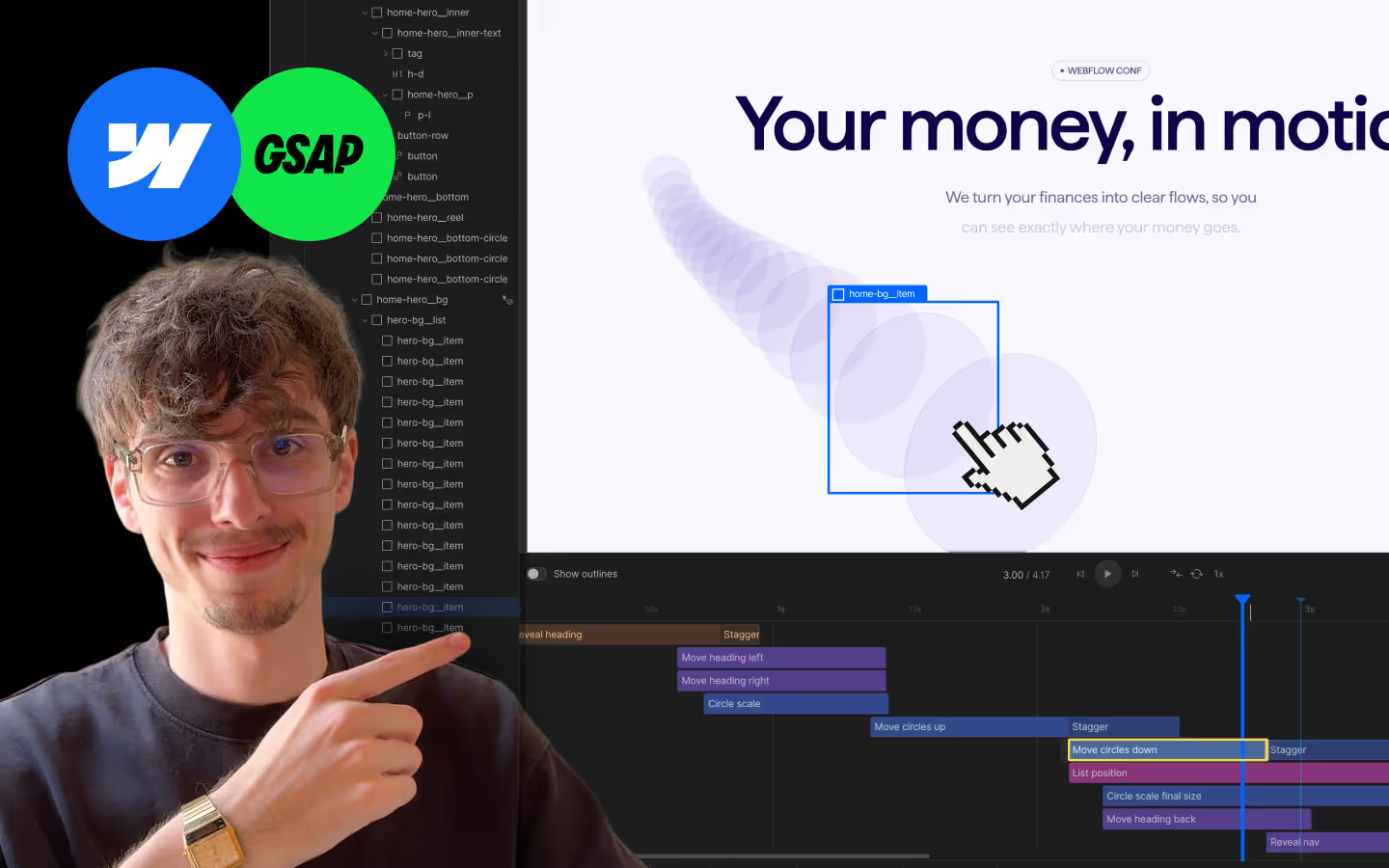
In this video you learn where to put these in your Webflow project? Or how to include a paid GSAP Club plugin in your project?
HTML
<script src="https://cdn.jsdelivr.net/npm/gsap@3.13.0/dist/gsap.min.js"></script>
<script src="https://cdn.jsdelivr.net/npm/gsap@3.13.0/dist/DrawSVGPlugin.min.js"></script>
<script src="https://cdn.jsdelivr.net/npm/gsap@3.13.0/dist/ScrollTrigger.min.js"></script>
Step 1: Copy structure to Webflow
Copy structure to Webflow
In the video below we described how you can copy + paste the structure of this resource to your Webflow project.
Copy to Webflow
Webflow structure is not required for this resource.
Step 1: Add HTML
HTML
HTML structure is not required for this resource.
Step 2: Add CSS
CSS
Step 2: Add custom Javascript
Custom Javascript in Webflow
In this video, Ilja gives you some guidance about using JavaScript in Webflow:
Step 2: Add Javascript
Step 3: Add Javascript
Javascript
function initDrawPathOnScroll() {
  const mm = gsap.matchMedia();
  const wrappers = document.querySelectorAll("[data-draw-scroll-wrap]");

  mm.add(
    {
      isDesktop: "(min-width: 768px)",
      isMobile: "(max-width: 767px)"
    },
    (context) => {
      const { isDesktop, isMobile } = context.conditions;

      wrappers.forEach((wrap) => {
        // Kill any previous timeline for this wrapper
        if (wrap._drawTl) {
          if (wrap._drawTl.scrollTrigger) {
            wrap._drawTl.scrollTrigger.kill();
          }
          wrap._drawTl.kill();
          wrap._drawTl = null;
        }

        const desktopSVG = wrap.querySelector("[data-draw-scroll-desktop]");
        const mobileSVG  = wrap.querySelector("[data-draw-scroll-mobile]"); // optional

        // default: desktop
        let svgToUse = desktopSVG;

        // on mobile, use mobileSVG if it exists
        if (isMobile && mobileSVG) {
          svgToUse = mobileSVG;
        }

        if (!svgToUse) return;

        const path = svgToUse.querySelector("[data-draw-scroll-path]");
        if (!path) return;

        const tl = gsap.timeline({
          defaults: {
            ease: "linear" // scroll speed controls easing
          },
          scrollTrigger: {
            trigger: wrap,
            start: "clamp(top center)",  // When top of wrap reaches center of viewport
            end: "clamp(bottom center)", // When bottom of wrap reaches center of viewport
            scrub: true,
            invalidateOnRefresh: true
          }
        });

        tl.fromTo(path,
          { drawSVG: 0 },
          { drawSVG: "100%", duration: 1 }
        );

        // Keep a reference so we can kill it on breakpoint change
        wrap._drawTl = tl;
      });

      // Make sure ScrollTrigger recalculates
      ScrollTrigger.refresh();

      // Cleanup when breakpoint changes
      return () => {
        wrappers.forEach((wrap) => {
          if (wrap._drawTl) {
            if (wrap._drawTl.scrollTrigger) {
              wrap._drawTl.scrollTrigger.kill();
            }
            wrap._drawTl.kill();
            wrap._drawTl = null;
          }
        });
      };
    }
  );
}

// Initialize Draw Path on Scroll
document.addEventListener("DOMContentLoaded", function () {
  initDrawPathOnScroll();
});
Step 3: Add custom CSS
Step 2: Add custom CSS
Custom CSS in Webflow
Curious about where to put custom CSS in Webflow? Ilja explains it in the below video:
CSS
Implementation
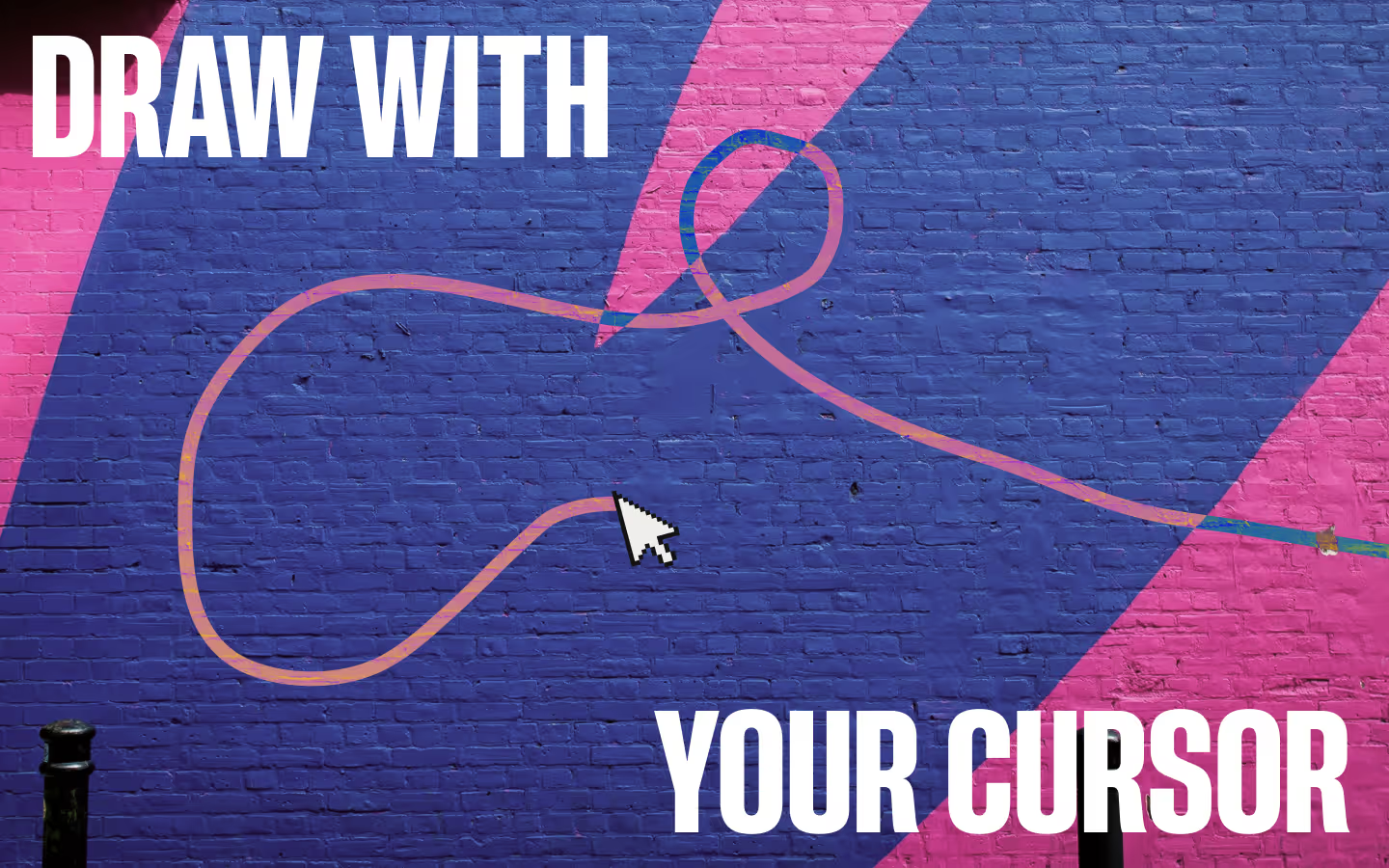
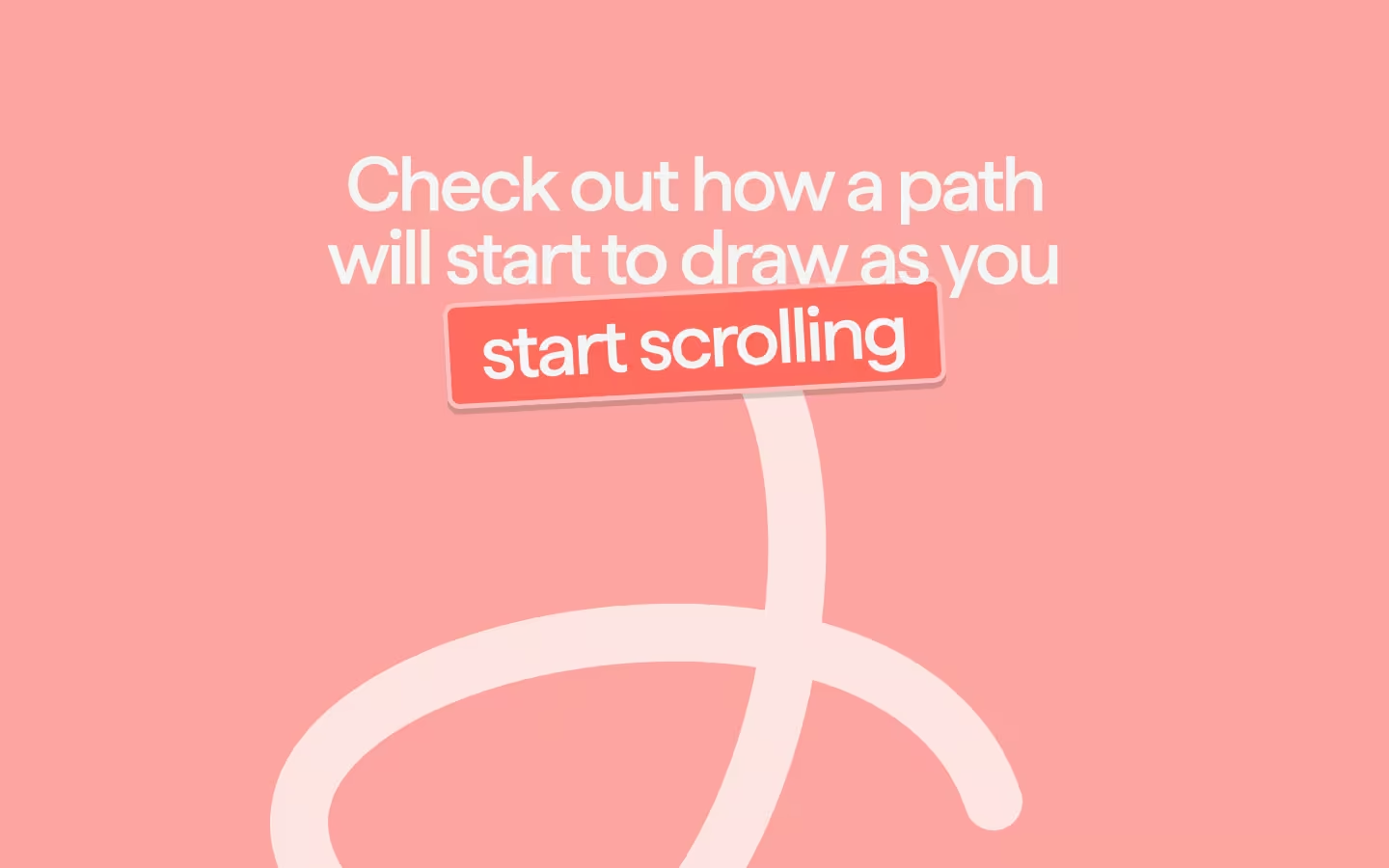
This setup lets you animate an SVG path that draws itself smoothly as the user scrolls, with support for desktop-only or different SVGs for desktop and mobile. You only need a wrapper, one or two SVGs, and a path element inside the SVG. It does this by controlling the stroke-dashoffset and stroke-dasharray CSS properties. This means this will not work to animate an element's fill, only a stroke.
- Wrap your SVG(s) inside a container with
[data-draw-scroll-wrap], which registers the whole section for scroll-based drawing. - Inside this wrapper, add a desktop SVG using
[data-draw-scroll-desktop], and optionally add a mobile SVG using[data-draw-scroll-mobile]. - Inside each SVG, place the path to animate using
[data-draw-scroll-path]— the script will draw whichever SVG matches the current breakpoint.
<div data-draw-scroll-wrap>
  <svg data-draw-scroll-desktop>
    <path data-draw-scroll-path d="..." />
  </svg>

  <!-- Optional -->
  <svg data-draw-scroll-mobile>
    <path data-draw-scroll-path d="..." />
  </svg>
</div>
The script automatically switches between the desktop and mobile SVG depending on screen width (using GSAP MatchMedia), recreates timelines on resize, and syncs the path drawing directly to scroll position.
Wrapper
Use [data-draw-scroll-wrap] to mark the section whose SVG path will animate on scroll, binding ScrollTrigger to this element.
Desktop SVG
Use [data-draw-scroll-desktop] to define the main SVG that contains a [data-draw-scroll-path] for drawing on screens above the mobile breakpoint.
Mobile SVG (Optional)
Use [data-draw-scroll-mobile] to supply an alternate SVG for smaller screens, which automatically replaces the desktop version when active (optional).
Path
Use [data-draw-scroll-path] to identify the <path> that should animate from 0% to 100% draw progress, and place this attribute inside either (or both) SVGs that exist within the wrapper.
Scroll Triggering
By default, the animation starts when the wrapper's top reaches the center of the viewport and ends when the bottom reaches the center, but you can adjust start and end in the script if you want earlier or later activation.
scrollTrigger: {
  trigger: wrap,
  start: "clamp(top center)",  // Change this anytime
  end: "clamp(bottom center)", // Change this anytime
  scrub: true,
  invalidateOnRefresh: true
}
Notes & Tips
Linear Progress
The path uses a linear ease to keep scroll distance perfectly synced to draw progress.
Breakpoints
When switching between desktop and mobile, the script kills and rebuilds the associated timeline so only one animation runs at a time.
Smooth scroll
This effect really shines when paired with a smooth scrolling library on the website. In our demo preview, we've used the Lenis Setup resource.
Official DrawSVG Docs
For more advanced DrawSVG features, see the official GSAP docs.
SVG from our live preview
<div data-draw-scroll-wrap>
  <!-- Desktop SVG -->
  <svg data-draw-scroll-desktop xmlns="http://www.w3.org/2000/svg" width="100%" viewBox="0 0 1040 2430" fill="none">
    <path data-draw-scroll-path d="M587.951 30.0063C718.546 287.255 506.581 892.058 187.126 635.947C-154.429 362.118 969.689 156.621 930.009 690.21C890.328 1223.8 117.306 1508.68 117.306 1203.2C117.306 927.361 1193.01 872.595 982.75 1411.21C863.692 1716.19 62.0549 2560.79 30.9135 1937.26C3.77072 1393.8 587.952 1603.14 587.951 2400.01" stroke="currentColor" stroke-width="60" stroke-linecap="round"></path>
  </svg>

  <!-- Mobile SVG -->
  <svg data-draw-scroll-mobile xmlns="http://www.w3.org/2000/svg" width="100%" viewBox="0 0 448 2433" fill="none">
    <path data-draw-scroll-path d="M261.417 30.502C326.48 118.169 402.716 356.502 187.155 608.502C-82.2964 923.502 204.717 1253.5 364.28 1379C523.844 1504.5 813.866 1858 146.008 2039.5C-521.85 2221 -136.489 1394.5 146.008 1768C428.506 2141.5 253.89 2356 233.318 2402.5" stroke="currentColor" stroke-width="61" stroke-linecap="round"></path>
  </svg>
</div>Resource details
Last updated
December 16, 2025
Category
Scroll Animations
Need help?
Join Slack
Original source
 Ilja van Eck
Creator Credits
We always strive to credit creators as accurately as possible. While similar concepts might appear online, we aim to provide proper and respectful attribution.