
































































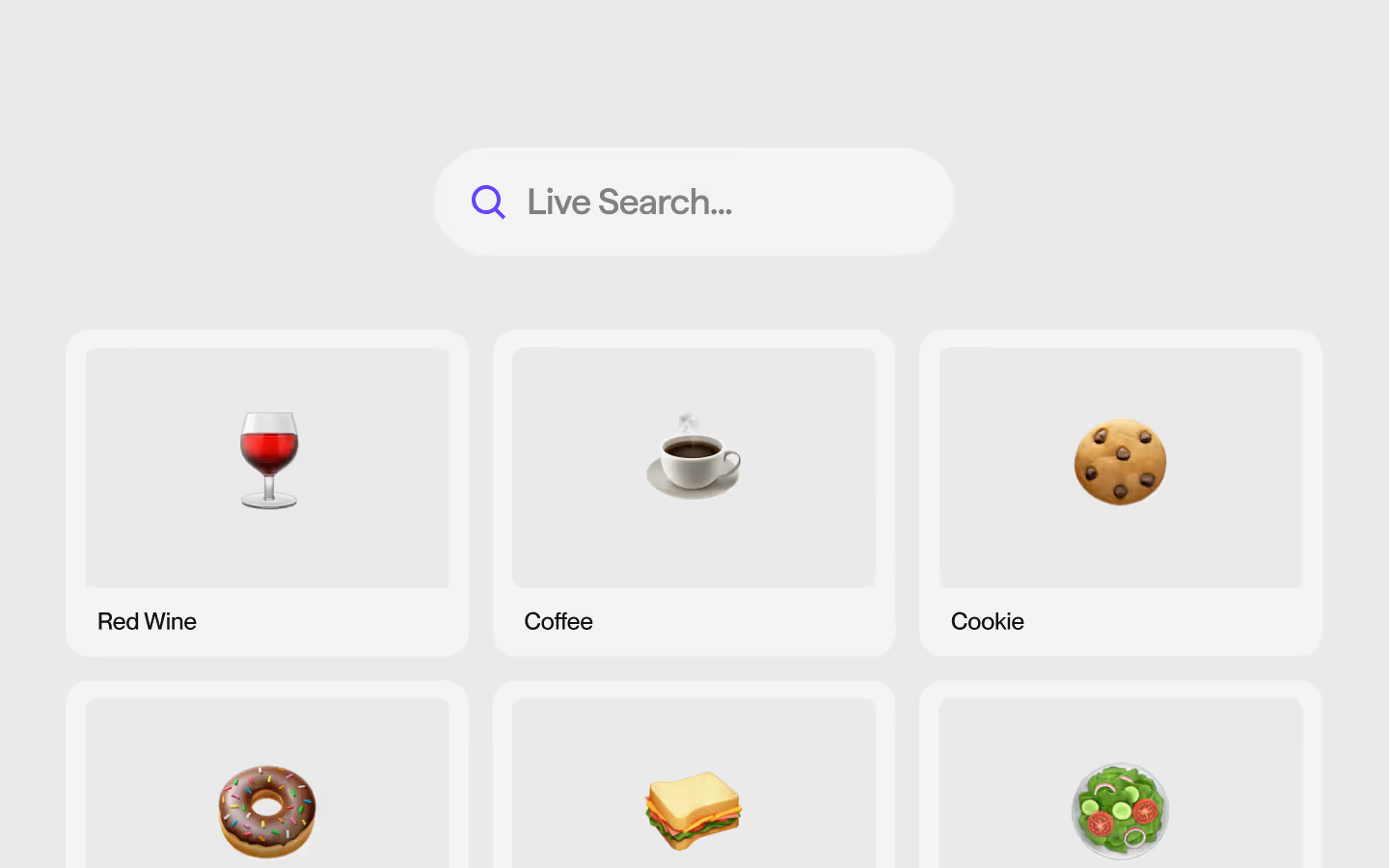
Live Search (List.js)
Documentation
Webflow
Code
Setup: External Scripts
External Scripts in Webflow
Make sure to always put the External Scripts before the Javascript step of the resource.
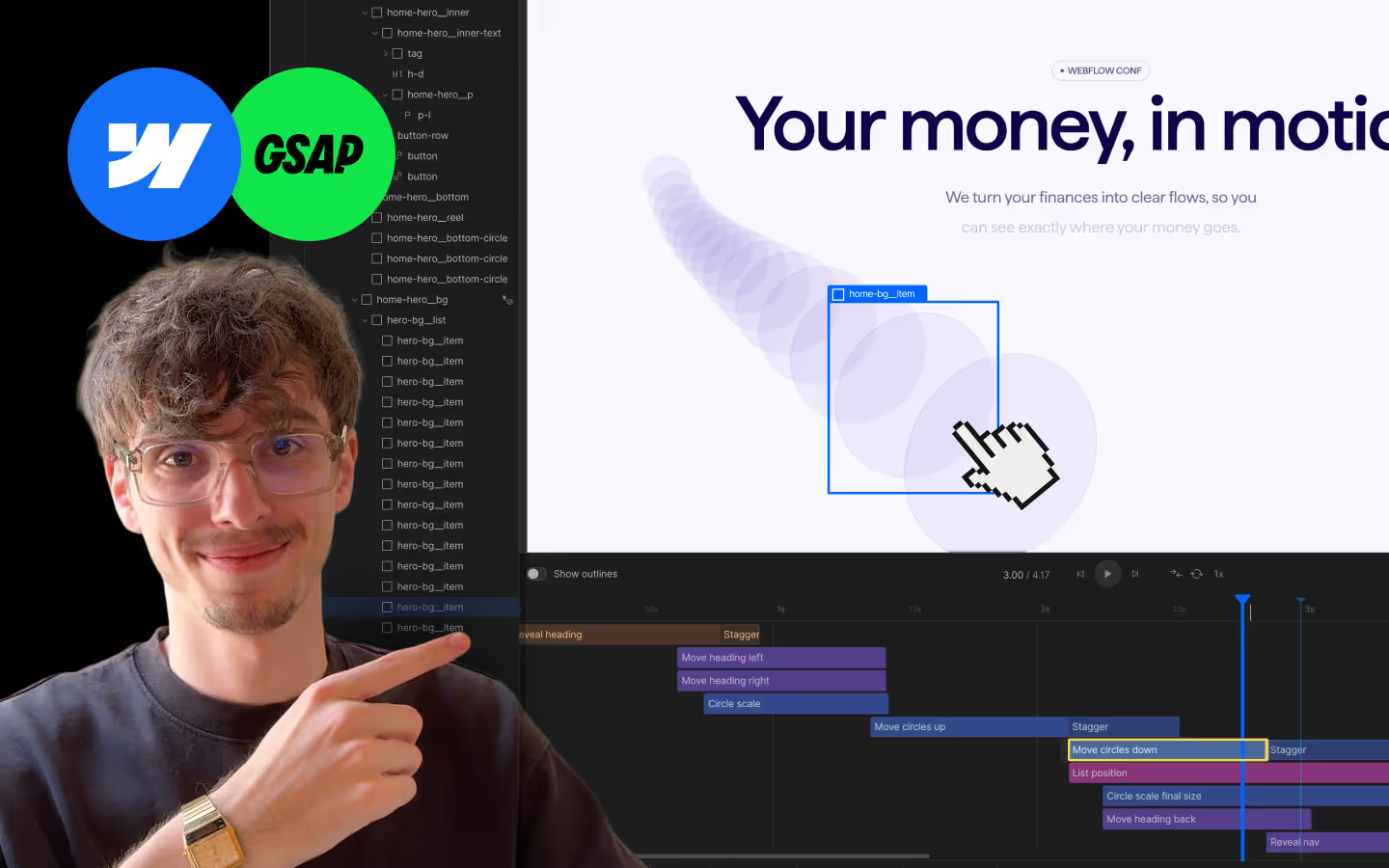
In this video you learn where to put these in your Webflow project? Or how to include a paid GSAP Club plugin in your project?
HTML
<script src="https://cdnjs.cloudflare.com/ajax/libs/list.js/2.3.1/list.min.js"></script>Step 1: Copy structure to Webflow
Copy structure to Webflow
In the video below we described how you can copy + paste the structure of this resource to your Webflow project.
Copy to Webflow
Webflow structure is not required for this resource.
Step 1: Add HTML
HTML
<div data-live-search="" class="live-search">
  <div class="live-search__search">
    <div class="live-search__search-field">
      <i class="live-search__search-icon">
        <svg xmlns="http://www.w3.org/2000/svg" width="100%" viewbox="0 0 24 24" fill="none"><path d="M15.7138 6.8382C18.1647 9.28913 18.1647 13.2629 15.7138 15.7138C13.2629 18.1647 9.28913 18.1647 6.8382 15.7138C4.38727 13.2629 4.38727 9.28913 6.8382 6.8382C9.28913 4.38727 13.2629 4.38727 15.7138 6.8382Z" stroke="currentColor" stroke-width="2" stroke-linecap="round" stroke-linejoin="round"></path><path d="M19 19L15.71 15.71" stroke="currentColor" stroke-width="2" stroke-linecap="round" stroke-linejoin="round"></path></svg>
      </i>
      <input type="search" placeholder="Search for name or keywords..." autocomplete="off" spellcheck="false" data-live-search-input="" class="live-search__search-input"></div>
  </div>
  <div class="live-search__list">
    <div class="live-search__item">
      <div class="demo-card">
        <div class="demo-card__top">
          <div class="demo-card__visual">
            <div class="demo-card__visual-before"></div><span class="demo-card__emoji">🍷</span>
          </div>
          <div class="demo-card__tags-collection">
            <div class="demo-card__tags-list">
              <div class="demo-card__tags-item">
                <p class="demo-card__tags-item-p">Drink</p>
              </div>
              <div class="demo-card__tags-item">
                <p class="demo-card__tags-item-p">Glass</p>
              </div>
            </div>
          </div>
        </div>
        <div class="demo-card__bottom">
          <h3 class="demo-card__h3">Red Wine</h3>
        </div>
      </div>
      <div class="live-search__data"><span class="live-search__name">Red Wine</span><span class="live-search__keywords">Drink, Glass</span></div>
    </div>
    <div class="live-search__item">
      <div class="demo-card">
        <div class="demo-card__top">
          <div class="demo-card__visual">
            <div class="demo-card__visual-before"></div><span class="demo-card__emoji">☕</span>
          </div>
          <div class="demo-card__tags-collection">
            <div class="demo-card__tags-list">
              <div class="demo-card__tags-item">
                <p class="demo-card__tags-item-p">Bean</p>
              </div>
            </div>
          </div>
        </div>
        <div class="demo-card__bottom">
          <h3 class="demo-card__h3">Coffee</h3>
        </div>
      </div>
      <div class="live-search__data"><span class="live-search__name">Coffee</span><span class="live-search__keywords">Bean</span></div>
    </div>
    <div class="live-search__item">
      <div class="demo-card">
        <div class="demo-card__top">
          <div class="demo-card__visual">
            <div class="demo-card__visual-before"></div><span class="demo-card__emoji">🍪</span>
          </div>
          <div class="demo-card__tags-collection">
            <div class="demo-card__tags-list">
              <div class="demo-card__tags-item">
                <p class="demo-card__tags-item-p">Chocolate</p>
              </div>
            </div>
          </div>
        </div>
        <div class="demo-card__bottom">
          <h3 class="demo-card__h3">Cookie</h3>
        </div>
      </div>
      <div class="live-search__data"><span class="live-search__name">Cookie</span><span class="live-search__keywords">Chocolate</span></div>
    </div>
    <div class="live-search__item">
      <div class="demo-card">
        <div class="demo-card__top">
          <div class="demo-card__visual">
            <div class="demo-card__visual-before"></div><span class="demo-card__emoji">🍩</span>
          </div>
          <div class="demo-card__tags-collection">
            <div class="demo-card__tags-list">
              <div class="demo-card__tags-item">
                <p class="demo-card__tags-item-p">Chocolate</p>
              </div>
              <div class="demo-card__tags-item">
                <p class="demo-card__tags-item-p">Sprinkles</p>
              </div>
            </div>
          </div>
        </div>
        <div class="demo-card__bottom">
          <h3 class="demo-card__h3">Donut</h3>
        </div>
      </div>
      <div class="live-search__data"><span class="live-search__name">Donut</span><span class="live-search__keywords">Chocolate, Sprinkles</span></div>
    </div>
    <div class="live-search__item">
      <div class="demo-card">
        <div class="demo-card__top">
          <div class="demo-card__visual">
            <div class="demo-card__visual-before"></div><span class="demo-card__emoji">🥪</span>
          </div>
          <div class="demo-card__tags-collection">
            <div class="demo-card__tags-list">
              <div class="demo-card__tags-item">
                <p class="demo-card__tags-item-p">Bread</p>
              </div>
              <div class="demo-card__tags-item">
                <p class="demo-card__tags-item-p">Cheese</p>
              </div>
            </div>
          </div>
        </div>
        <div class="demo-card__bottom">
          <h3 class="demo-card__h3">Sandwich</h3>
        </div>
      </div>
      <div class="live-search__data"><span class="live-search__name">Sandwich</span><span class="live-search__keywords">Bread, Cheese</span></div>
    </div>
    <div class="live-search__item">
      <div class="demo-card">
        <div class="demo-card__top">
          <div class="demo-card__visual">
            <div class="demo-card__visual-before"></div><span class="demo-card__emoji">🥗</span>
          </div>
          <div class="demo-card__tags-collection">
            <div class="demo-card__tags-list">
              <div class="demo-card__tags-item">
                <p class="demo-card__tags-item-p">Tomato</p>
              </div>
              <div class="demo-card__tags-item">
                <p class="demo-card__tags-item-p">Lettuce</p>
              </div>
            </div>
          </div>
        </div>
        <div class="demo-card__bottom">
          <h3 class="demo-card__h3">Salad</h3>
        </div>
      </div>
      <div class="live-search__data"><span class="live-search__name">Salad</span><span class="live-search__keywords">Tomato, Lettuce</span></div>
    </div>
  </div>
  <div data-live-search-not-found="" class="live-search__not-found">
    <p class="live-search__not-found-p">😕 We couldn't found a match for "Osmo"</p>
  </div>
</div>
HTML structure is not required for this resource.
Step 2: Add CSS
CSS
.live-search {
  grid-column-gap: 3em;
  grid-row-gap: 3em;
  flex-flow: column;
  display: flex;
}

.live-search__search {
  justify-content: center;
  align-items: center;
  display: flex;
}

.live-search__search-field {
  background-color: #f4f4f4;
  border: 1px solid #0000;
  border-radius: 50em;
  align-items: center;
  width: 100%;
  max-width: 22em;
  height: 4em;
  display: flex;
  position: relative;
}

.live-search__search-icon {
  z-index: 1;
  pointer-events: none;
  color: #6840ff;
  -webkit-user-select: none;
  user-select: none;
  flex: none;
  justify-content: center;
  align-items: center;
  width: 1.5em;
  height: 1.5em;
  padding: 0;
  display: flex;
  position: absolute;
  left: 1em;
}

.live-search__search-input {
  letter-spacing: -.015em;
  -webkit-appearance: none;
  appearance: none;
  background-color: #0000;
  border: 0;
  outline: 0;
  width: 100%;
  height: 100%;
  margin: 0;
  padding: 0 0 0 2.75em;
  font-size: 1.125em;
  font-weight: 400;
}

.live-search__search-field:has(input:focus) {
  border-color: rgba(0, 0, 0, 0.1);
}

.live-search__search-field input::placeholder {
  color: rgba(0, 0, 0, 0.4);
  opacity: 1;
}

.live-search__list {
  grid-column-gap: 1.5em;
  grid-row-gap: 1.5em;
  flex-flow: wrap;
  justify-content: center;
  width: 100%;
  display: flex;
}

.live-search__item {
  width: calc(33.33% - 1em);
}

.live-search__not-found-p {
  color: #817f7f;
  text-align: center;
  font-size: 1em;
}

.live-search__data, .live-search__not-found {
  display: none;
}

@media screen and (max-width: 991px) {
  .live-search__item {
    width: calc(49.995% - .75em);
  }
}

@media screen and (max-width: 767px) {
  .live-search__item {
    width: 100%;
  }
}

.demo-card {
  grid-column-gap: 1em;
  grid-row-gap: 1em;
  background-color: #f4f4f4;
  border-radius: 1.5em;
  flex-flow: column;
  width: 100%;
  padding: 1em;
  display: flex;
}

.demo-card__top {
  position: relative;
}

.demo-card__visual {
  background-color: #eaeaea;
  border-radius: .5em;
  justify-content: center;
  align-items: center;
  width: 100%;
  display: flex;
  position: relative;
}

.demo-card__visual-before {
  padding-top: 66%;
}

.demo-card__emoji {
  font-size: 4em;
}

.demo-card__tags-collection {
  width: 100%;
  padding: 1em;
  position: absolute;
  top: 0;
  left: 0;
}

.demo-card__tags-list {
  display: flex;
}

.demo-card__tags-item {
  background-color: #f4f4f4;
  border-radius: 3em;
  padding: .25em .75em;
}

.demo-card__tags-item-p {
  letter-spacing: -.01em;
  margin-bottom: 0;
  font-size: .875em;
  font-weight: 400;
}

.demo-card__bottom {
  justify-content: flex-start;
  align-items: center;
  padding-bottom: .25em;
  padding-left: .5em;
  padding-right: .5em;
  display: flex;
}

.demo-card__h3 {
  letter-spacing: -.02em;
  margin-top: 0;
  margin-bottom: 0;
  font-size: 1.25em;
  font-weight: 500;
  line-height: 1.2;
}
Step 2: Add custom Javascript
Custom Javascript in Webflow
In this video, Ilja gives you some guidance about using JavaScript in Webflow:
Step 2: Add Javascript
Step 3: Add Javascript
Javascript
function initLiveSearch() {

  document.querySelectorAll('[data-live-search]').forEach(function(root) {
    const input = root.querySelector('[data-live-search-input]');
    const notFound = root.querySelector('[data-live-search-not-found]');

    // Options: Full Documentation: https://listjs.com/
    const options = {
      listClass: 'live-search__list',
      valueNames: ['live-search__name', 'live-search__keywords'],
      fuzzySearch: {
        location: 0,
        distance: 100,
        threshold: 0.3
      }
    };

    const list = new List(root, options);

    function updateNotFound() {
      if (!notFound) return;
      const q = (input && input.value ? input.value : '').trim();
      if (list.matchingItems.length === 0 && q !== '') {
        notFound.style.display = 'block';
        const p = notFound.querySelector('p');
        if (p) p.textContent = `We couldn't find a match for "${q}" 😕`;
      } else {
        notFound.style.display = 'none';
      }
    }

    function runSearch() {
      const q = (input && input.value ? input.value : '').trim();
      if (!q) {
        list.search(); // Clear
        updateNotFound();
        return;
      }
      if (typeof list.fuzzySearch === 'function') {
        list.fuzzySearch(q);
      } else {
        list.search(q, ['live-search__name', 'live-search__keywords']);
      }
      updateNotFound();
    }

    if (input) {
      input.addEventListener('input', runSearch);
    }

    root._pageSearchList = list;

    // Initial state
    list.search();
    updateNotFound();

  });
}

// Initialize Live Search (List.js)
document.addEventListener('DOMContentLoaded', () => {
  initLiveSearch();
});
Step 3: Add custom CSS
Step 2: Add custom CSS
Custom CSS in Webflow
Curious about where to put custom CSS in Webflow? Ilja explains it in the below video:
CSS
.live-search__search-field:has(input:focus) {
  border-color: rgba(0, 0, 0, 0.1);
}

.live-search__search-field input::placeholder {
  color: rgba(0, 0, 0, 0.4);
  opacity: 1;
}
Implementation
Container
Use [data-live-search] on the wrapper element to initialize a List.js instance on that container, scoping the search behavior and all related elements to that specific block.
Search Input
Use [data-live-search-input] on an <input> inside the container so the script can listen for input events and update the fuzzy search results as the user types.
Not Found Message
Use [data-live-search-not-found] on an element inside the container to toggle a custom “no results” state when the current query returns no matching items.
List (Target via Class)
Use the class .live-search__list on the element that wraps all items so the List.js instance knows which child nodes to treat as the searchable list.
Data (Name and Keywords)
Use .live-search__name and .live-search__keywords inside each item so the script can index both visible labels and supporting search terms, and you can freely add your own fields or data types as long as they match the valueNames configuration in the script.
List.js Documentation
For more information about options check out the full List.js Documentation
Resource details
Last updated
December 16, 2025
Category
Filters & Sorting
Need help?
Join Slack
Original source
 Dennis Snellenberg
Creator Credits
We always strive to credit creators as accurately as possible. While similar concepts might appear online, we aim to provide proper and respectful attribution.