







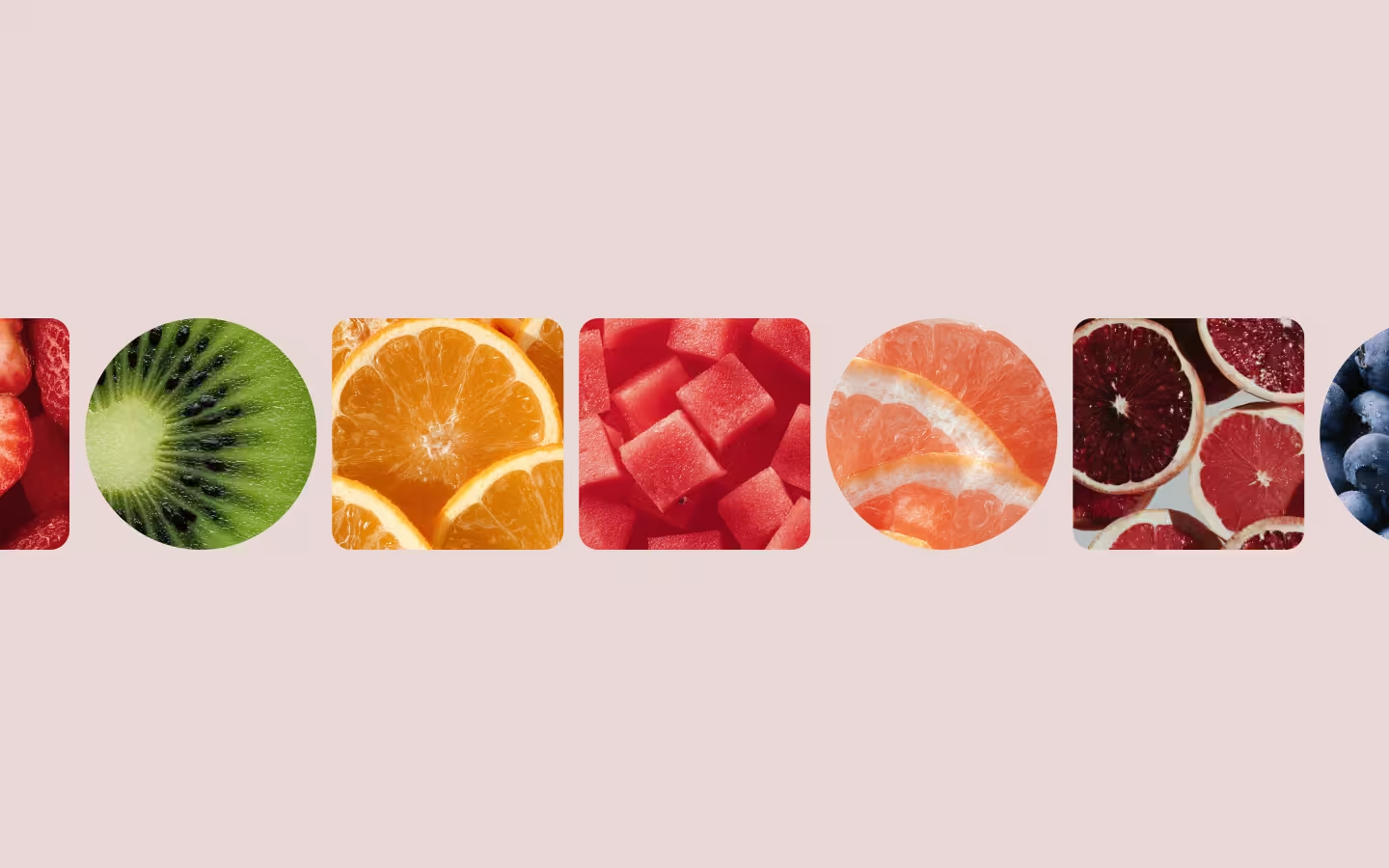















































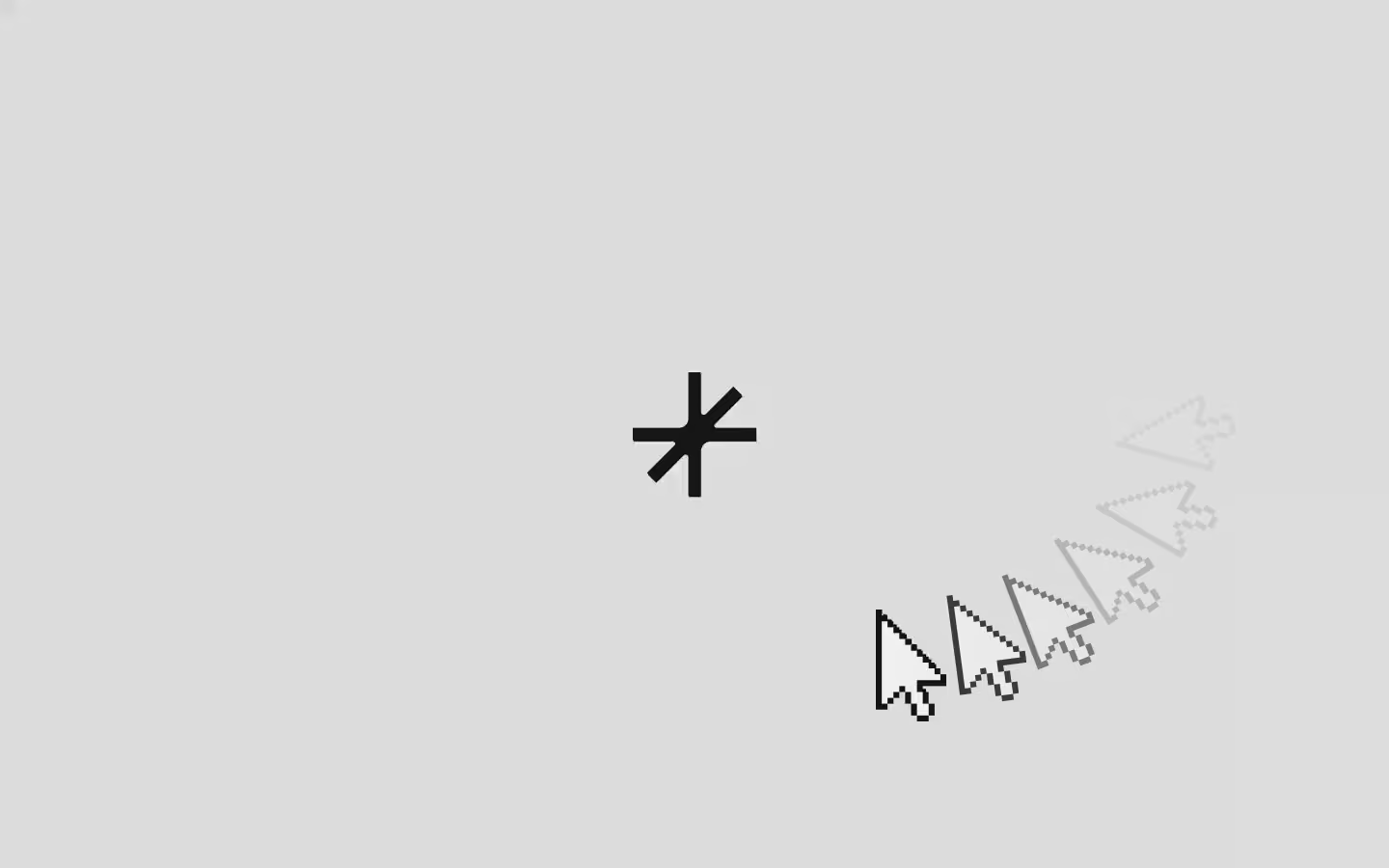



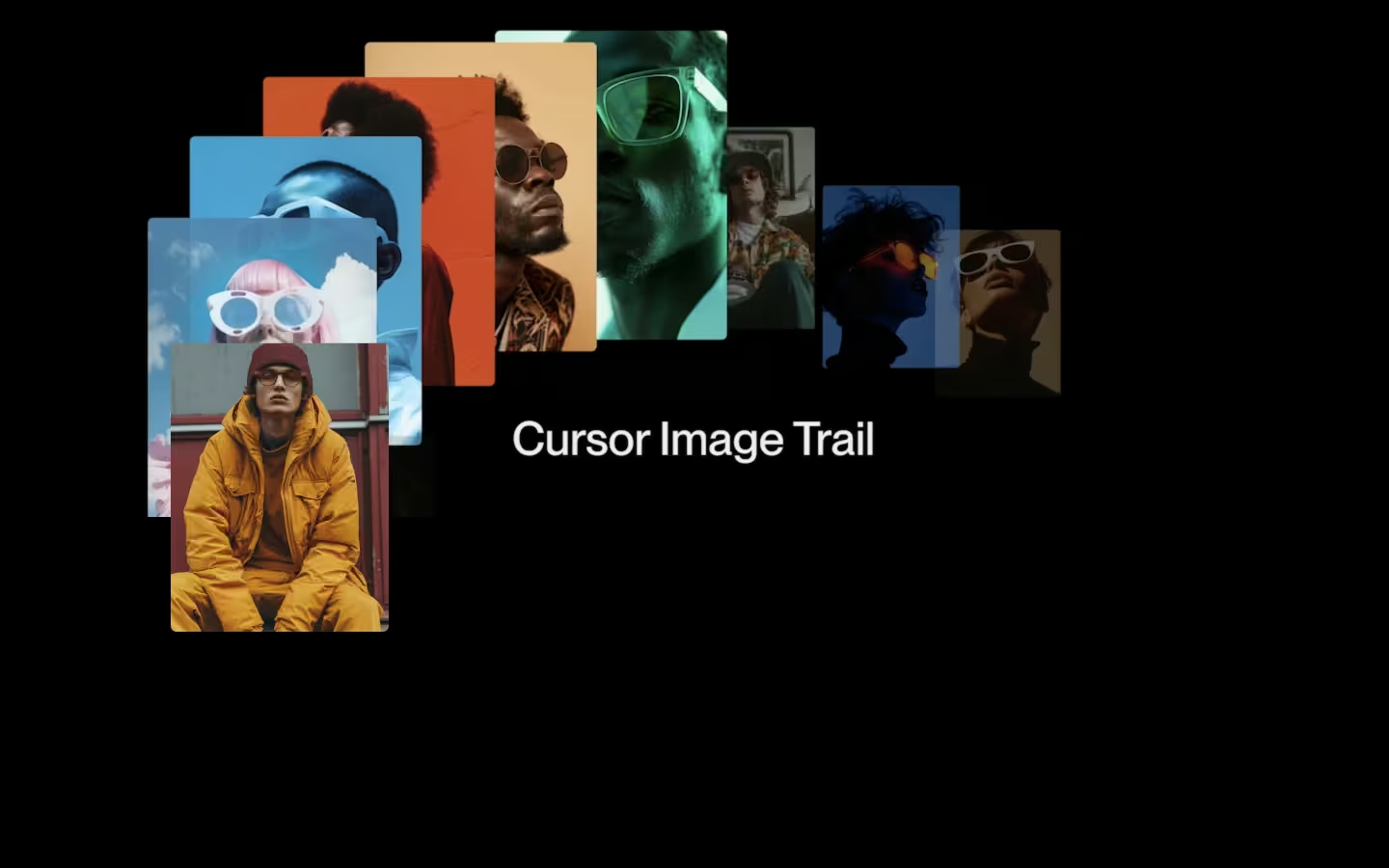































Rotating Image Trail

Documentation
Webflow
Code
Setup: External Scripts
External Scripts in Webflow
Make sure to always put the External Scripts before the JavasScript step of the resource. In this video you learn where to put these in your Webflow project:
HTML
Step 1: Copy structure to Webflow
Copy structure to Webflow
In the video below we described how you can copy + paste the structure of this resource to your Webflow project:
Copy to Webflow
Webflow structure is not required for this resource.
Step 1: Add HTML
HTML
<div data-trail-area="" class="rotating-image-trail">
  <div data-trail-collection="" class="rotating-image-trail__collection">
    <div class="rotating-image-trail__list">
      <div data-trail-item="" class="rotating-image-trail__item">
        <div class="rotating-image-trail__card"><img src="https://cdn.prod.website-files.com/6932993a27f964dfe176d82d/6932ce8da6d03b0b3e124448_QmdGkQSqqBC5iYSaebPsFoaSWtjhaMQNWpVnWoGJeATp2h.avif" loading="eager" alt="" class="rotating-image-trail__card-img"></div>
      </div>
      <div data-trail-item="" class="rotating-image-trail__item">
        <div class="rotating-image-trail__card"><img src="https://cdn.prod.website-files.com/6932993a27f964dfe176d82d/6932ce8d31f5065ad1b56f28_QmdGkQSqqBC5iYSaebPsFoaSWtjhaMQNWpVnWoGJeATp2h-1.avif" loading="eager" alt="" class="rotating-image-trail__card-img"></div>
      </div>
      <div data-trail-item="" class="rotating-image-trail__item">
        <div class="rotating-image-trail__card"><img src="https://cdn.prod.website-files.com/6932993a27f964dfe176d82d/6932ce8db16589054bdbb90c_QmdGkQSqqBC5iYSaebPsFoaSWtjhaMQNWpVnWoGJeATp2h-2.avif" loading="eager" alt="" class="rotating-image-trail__card-img"></div>
      </div>
      <div data-trail-item="" class="rotating-image-trail__item">
        <div class="rotating-image-trail__card"><img src="https://cdn.prod.website-files.com/6932993a27f964dfe176d82d/6932ce8df30cf8d00c003f71_QmdGkQSqqBC5iYSaebPsFoaSWtjhaMQNWpVnWoGJeATp2h-3.avif" loading="eager" alt="" class="rotating-image-trail__card-img"></div>
      </div>
      <div data-trail-item="" class="rotating-image-trail__item">
        <div class="rotating-image-trail__card"><img src="https://cdn.prod.website-files.com/6932993a27f964dfe176d82d/6932ce8d93dc505b20189674_QmdGkQSqqBC5iYSaebPsFoaSWtjhaMQNWpVnWoGJeATp2h-4.avif" loading="eager" alt="" class="rotating-image-trail__card-img"></div>
      </div>
      <div data-trail-item="" class="rotating-image-trail__item">
        <div class="rotating-image-trail__card"><img src="https://cdn.prod.website-files.com/6932993a27f964dfe176d82d/6932ce8dbae50223e708bd7d_QmdGkQSqqBC5iYSaebPsFoaSWtjhaMQNWpVnWoGJeATp2h-5.avif" loading="eager" alt="" class="rotating-image-trail__card-img"></div>
      </div>
      <div data-trail-item="" class="rotating-image-trail__item">
        <div class="rotating-image-trail__card"><img src="https://cdn.prod.website-files.com/6932993a27f964dfe176d82d/6932ce8d771505aebebe7fc5_QmdGkQSqqBC5iYSaebPsFoaSWtjhaMQNWpVnWoGJeATp2h-6.avif" loading="eager" alt="" class="rotating-image-trail__card-img"></div>
      </div>
      <div data-trail-item="" class="rotating-image-trail__item">
        <div class="rotating-image-trail__card"><img src="https://cdn.prod.website-files.com/6932993a27f964dfe176d82d/6932ce8df133e02803a28424_QmdGkQSqqBC5iYSaebPsFoaSWtjhaMQNWpVnWoGJeATp2h-7.avif" loading="eager" alt="" class="rotating-image-trail__card-img"></div>
      </div>
    </div>
  </div>
</div>
HTML structure is not required for this resource.
Step 2: Add CSS
CSS
.rotating-image-trail {
  width: 100vw;
  height: 100vh;
  position: absolute;
}

.rotating-image-trail__collection {
  opacity: 0;
  pointer-events: none;
}

.rotating-image-trail__list {
  grid-column-gap: 1em;
  grid-row-gap: 1em;
  flex-flow: wrap;
  display: flex;
}

.rotating-image-trail__item {
  z-index: 10;
  pointer-events: none;
  -webkit-user-select: none;
  user-select: none;
}

.rotating-image-trail__card {
  aspect-ratio: 3 / 4;
  width: 10vw;
  position: relative;
}

.rotating-image-trail__card-img {
  object-fit: cover;
  width: 100%;
  height: 100%;
  display: block;
  position: absolute;
  top: 0;
  left: 0;
}

[data-trail-item="hidden"] {
  transform: translate(-50%, -50%) scale(0) rotate(-20deg);
  position: absolute;
}

[data-trail-item="visible"] {
  transform: translate(-50%, -50%) scale(1) rotate(0.001deg);
  transition: transform 0.4s cubic-bezier(0.625, 0.05, 0, 1);
  position: absolute;
}

[data-trail-item="transition-out"] {
  transform: translate(-50%, -50%) scale(0) rotate(180deg);
  transition: transform 0.8s cubic-bezier(0.625, 0, 0.875, 0);
  position: absolute;
}
Step 2: Add custom Javascript
Custom Javascript in Webflow
In this video, Ilja gives you some guidance about using JavaScript in Webflow:
Step 2: Add Javascript
Step 3: Add Javascript
Javascript
function initRotatingImageTrail() {
  var area = document.querySelector("[data-trail-area]");
  if (!area) return;

  var collection = area.querySelector("[data-trail-collection]");
  if (!collection) return;

  var items = collection.querySelectorAll("[data-trail-item]");
  if (!items.length) return;

  // Distance logic
  var index = 0;
  var lastCloneX = null;
  var lastCloneY = null;

  var cardWidth = items[0].getBoundingClientRect().width;
  var stepDistance = cardWidth * 0.5;

  function spawnTrailItem(x, y) {
    var original = items[index];
    var clone = original.cloneNode(true);

    clone.style.left = x + "px";
    clone.style.top = y + "px";

    clone.setAttribute("data-trail-item", "hidden");

    area.appendChild(clone);

    void clone.getBoundingClientRect();

    clone.setAttribute("data-trail-item", "visible");

    setTimeout(function () {
      clone.setAttribute("data-trail-item", "transition-out");
    }, 400);

    setTimeout(function () {
      clone.remove();
    }, 1200);

    index = (index + 1) % items.length;
    lastCloneX = x;
    lastCloneY = y;
  }

  // Mouse movement logic
  area.addEventListener("mousemove", function (event) {
    var rect = area.getBoundingClientRect();
    var x = event.clientX - rect.left;
    var y = event.clientY - rect.top;

    if (x < 0 || y < 0 || x > rect.width || y > rect.height) {
      lastCloneX = null;
      lastCloneY = null;
      return;
    }

    if (lastCloneX === null || lastCloneY === null) {
      spawnTrailItem(x, y);
      return;
    }

    var dx = x - lastCloneX;
    var dy = y - lastCloneY;
    var distance = Math.sqrt(dx * dx + dy * dy);

    if (distance >= stepDistance) {
      spawnTrailItem(x, y);
    }
  });
}

// Initialize Rotating Image Trail
document.addEventListener("DOMContentLoaded", function () {
  initRotatingImageTrail();
});
Step 3: Add custom CSS
Step 2: Add custom CSS
Custom CSS in Webflow
Curious about where to put custom CSS in Webflow? Ilja explains it in the below video:
CSS
[data-trail-item="hidden"] {
  transform: translate(-50%, -50%) scale(0) rotate(-20deg);
  position: absolute;
}

[data-trail-item="visible"] {
  transform: translate(-50%, -50%) scale(1) rotate(0.001deg);
  transition: transform 0.4s cubic-bezier(0.625, 0.05, 0, 1);
  position: absolute;
}

[data-trail-item="transition-out"] {
  transform: translate(-50%, -50%) scale(0) rotate(180deg);
  transition: transform 0.8s cubic-bezier(0.625, 0, 0.875, 0);
  position: absolute;
}
Implementation
Area
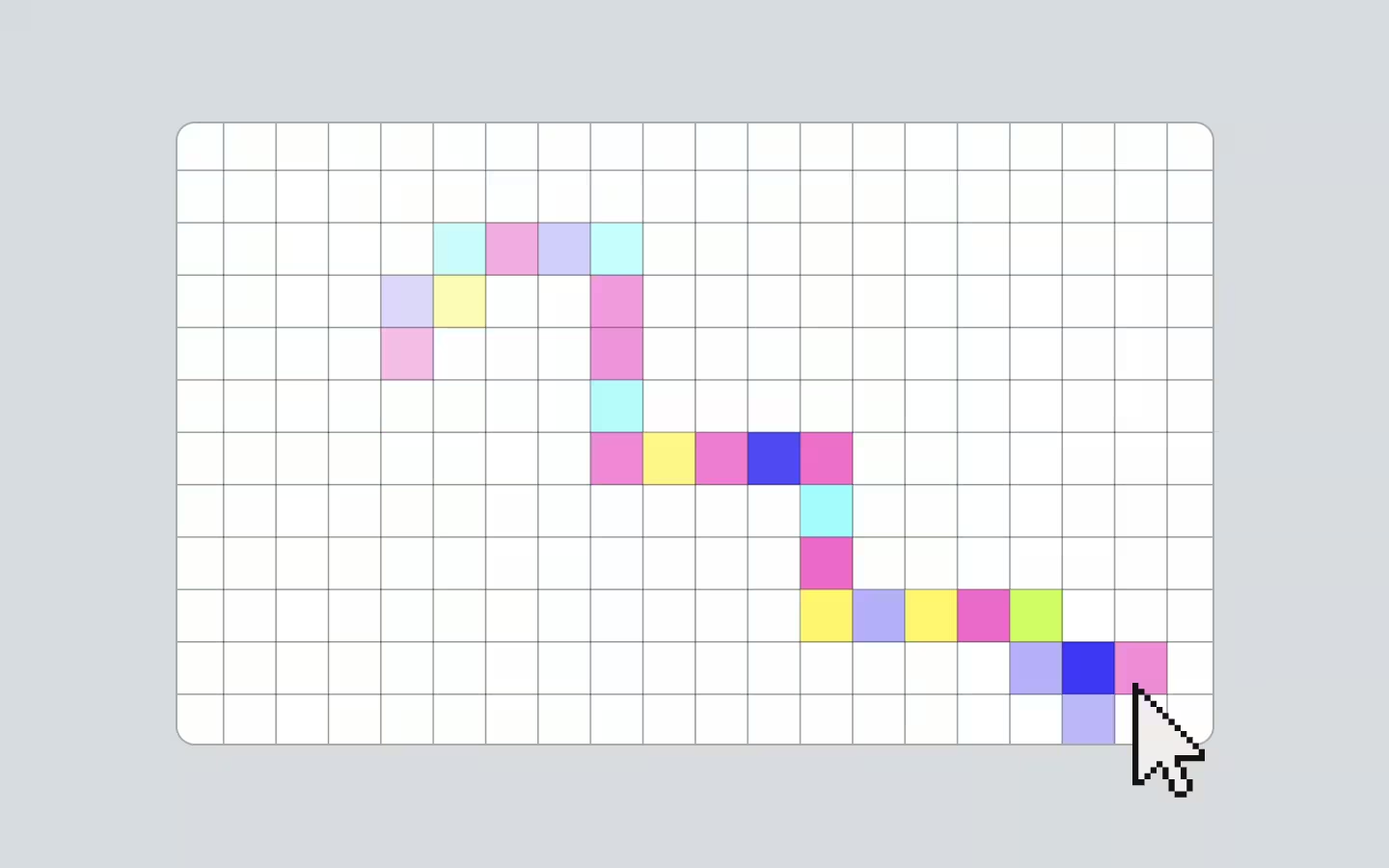
Use [data-trail-area] to define the hoverable region that listens to mouse movement and receives the spawned trail clones.
<div data-trail-area>
  <div data-trail-collection>
    <div data-trail-item>...</div>
    <div data-trail-item>...</div>
    <div data-trail-item>...</div>
  </div>
</div>
Collection
Use [data-trail-collection] to hold the original items that the script cycles through when creating each trail clone.
Item
Use [data-trail-item] on each card you want to be eligible for cloning, with the script rotating through them in order for every spawn.
State
[data-trail-item="hidden"]to mark a freshly appended clone before it is visually activated so your CSS can set its initial state.[data-trail-item="visible"]to switch the clone into its active on screen state right after layout is forced.[data-trail-item="transition-out"]to trigger the clone exit animation shortly after it becomes visible, before removal.
Distance
Use the first [data-trail-item] width as the spacing basis, because the script checks how far the cursor has moved before spawning the next clone, and you can tweak the feel of the trail by changing the multiplier in the JavaScript.
var cardWidth = items[0].getBoundingClientRect().width;
var stepDistance = cardWidth * 0.5;
Timing
Use the timeout values to control how long a clone stays on screen and how quickly it transitions out, and you can fine tune the rhythm of the trail by adjusting these numbers directly in the JavaScript.
setTimeout(function () {
  clone.setAttribute("data-trail-item", "transition-out");
}, 400);

setTimeout(function () {
  clone.remove();
}, 1200);Resource details
Last updated
January 18, 2026
Category
Cursor Animations
Need help?
Join Slack
Original source
 Dennis Snellenberg
Creator Credits
We always strive to credit creators as accurately as possible. While similar concepts might appear online, we aim to provide proper and respectful attribution.